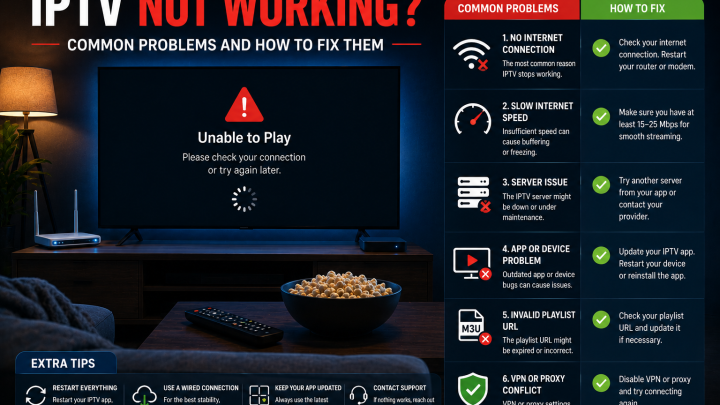
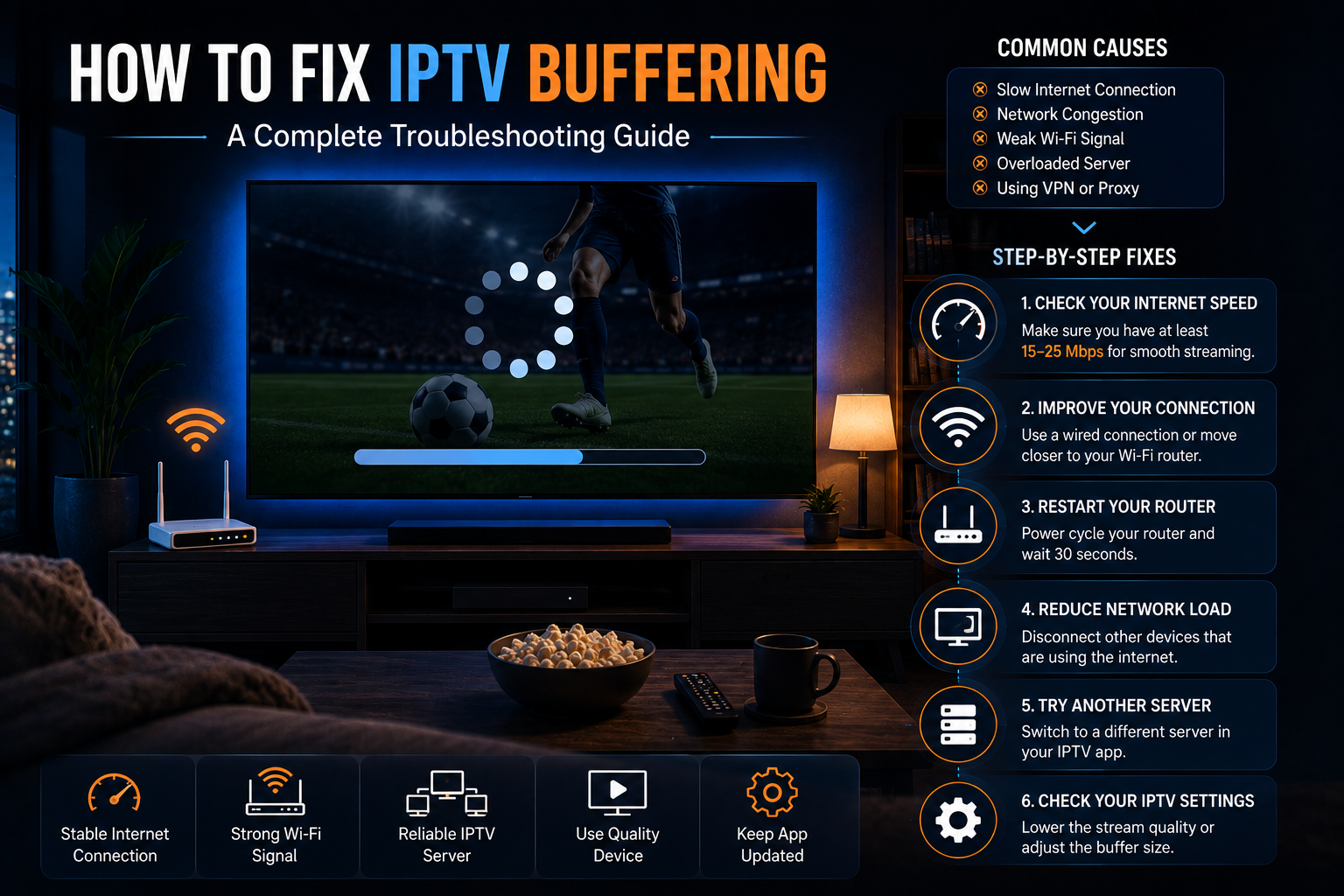
Quick answer: IPTV buffering is caused by one of five things — your internet connection, your home Wi-Fi, your streaming device, your player app settings, or your provider's server load. Before changing settings randomly, identify which part of the chain is the problem. Restarting your device and router, switching from Wi-Fi to Ethernet, and clearing your IPTV app cache resolve the majority of cases. If all channels buffer consistently, test your internet speed. If one channel buffers while others work, the issue is likely stream-specific.
Why Does IPTV Keep Buffering?
IPTV delivers television content as a continuous stream of data packets over your internet connection. Your player app receives those packets, buffers a short reserve of data ahead, and plays from that reserve. When packets stop arriving fast enough — or arrive inconsistently — the buffer empties before it can refill, and you see the freeze-and-spin cycle.
The important insight is that buffering can originate anywhere in that delivery chain:
- Your internet connection — not enough available bandwidth, or an unstable connection
- Your home Wi-Fi — signal interference, distance from router, or packet loss even on a "fast" connection
- Your streaming device — too many background apps, low storage, or the device struggling to decode a high-bitrate stream
- Your IPTV player app — a corrupted cache, an outdated app version, or decoder settings not optimized for your hardware
- Your provider's server — overloaded during peak hours or during a major live event when thousands of users connect simultaneously
Fixes that target the wrong part of the chain won't help. That's why the diagnostic step comes first.
Quick Fix Checklist
Try these in order before going deeper. The majority of IPTV buffering cases are resolved by one of the first five steps.
- Check whether the problem affects all channels or just one. If one channel buffers while others play smoothly, the problem is stream-specific — not your home setup. Try a different channel or contact your provider about that stream.
- Run a speed test on your streaming device — not your phone. Use a browser-based speed test or the Speedtest.net app. Confirm you have at least 10 Mbps of stable download speed available for HD, or 25 Mbps for 4K.
- Force-close the IPTV app and reopen it. On Firestick: hold the Home button > App Switcher > swipe up on the app to close. On Android TV: Settings > Apps > Force Stop.
- Restart your streaming device. A full power cycle clears temporary memory issues and often resolves intermittent freezing.
- Restart your router. Unplug it, wait 30 seconds, then plug it back in. Wait 60 seconds before testing. Routers accumulate routing table data over time that can cause connection instability.
- Switch from Wi-Fi to Ethernet if practical. This is the single most effective fix for connection-related buffering on any device.
- Clear your IPTV app cache — see the device-specific steps below.
- Check for player app updates. Outdated apps can lose compatibility with updated provider systems.
- Try a different channel to confirm whether the problem is stream-specific or affects your entire service.
- Contact your provider's support if the problem persists after all of the above — server-side issues cannot be fixed from your end.
1. Check Your Internet Connection
The first thing to check is not your internet plan speed — it's the actual available bandwidth reaching your streaming device at the moment you're watching.
Your ISP plan speed (the number on your bill) is the maximum theoretical speed under ideal conditions. Actual available bandwidth is lower when other devices are active, when your router is under load, or during peak hours in your neighborhood.
Per the FCC Broadband Speed Guide, minimum download speeds for video streaming are:
| Quality | FCC Minimum (per stream) |
|---|---|
| Standard Definition (SD) | 3–4 Mbps |
| High Definition (HD / 1080p) | 5–8 Mbps |
| Ultra HD (4K) | 25 Mbps |
These are per-stream minimums. If two people in your household are streaming HD simultaneously, you need roughly double that available — in addition to bandwidth consumed by other connected devices (phones, smart home devices, laptops).
Test your connection on the streaming device, not your phone. Open a speed test app or browser on the actual Firestick, Android TV, or Smart TV that is buffering. The result tells you what that device is actually receiving, which can differ significantly from what your phone shows from another room.
If the speed test shows adequate bandwidth but buffering persists, the problem is elsewhere in the chain — keep reading.
2. Understand the Wi-Fi Factor
Wi-Fi is the most common cause of IPTV buffering that isn't related to provider server load — and it's frequently the cause even when the internet speed looks fine on paper.
The reason is packet loss. A "fast" Wi-Fi connection can still drop small percentages of data packets due to interference, signal degradation through walls, or competing networks from neighbors. IPTV streams are sensitive to packet loss in a way that general web browsing is not, because a dropped packet in a live stream can't simply be re-requested without causing a visible freeze.
If your streaming device is on Wi-Fi:
- Switch to the 5 GHz band rather than 2.4 GHz. The 5 GHz band is faster and less congested in most home environments, though it has shorter range through walls.
- Move your device or router closer if possible. Even a few feet can significantly improve signal strength.
- Identify interference sources. Microwave ovens, cordless phones, and neighboring Wi-Fi networks all create interference on the 2.4 GHz band.
- Reduce competing devices. If other household members are streaming, gaming, or video calling simultaneously, pause or delay those activities while troubleshooting.
3. Try Ethernet When Practical
Switching from Wi-Fi to a wired Ethernet connection is the single most reliable fix for home network-related IPTV buffering. A wired connection eliminates Wi-Fi interference and packet loss entirely, delivering consistent bandwidth regardless of signal conditions.
Device-specific options:
- Firestick: An Ethernet adapter for Fire TV connects to the Firestick's USB port and provides a wired connection. This is particularly useful for Fire TV Stick 4K and 4K Max, which have USB-C and Micro-USB ports respectively — verify the correct adapter for your specific model.
- Android TV Box: Most dedicated Android TV boxes include a built-in Ethernet port on the unit itself.
- Smart TV: Most modern Samsung and LG Smart TVs have an RJ45 Ethernet port on the back panel.
A wired connection doesn't guarantee zero buffering — if the problem is provider-side, Ethernet won't change it. But if the buffering is connection-related, Ethernet typically resolves it.
4. Restart Your Router and Streaming Device
This is less exciting than changing settings, but it works in a significant proportion of cases.
Why restarting helps:
- Routers build up routing tables and connection state over days of operation. Accumulated data can introduce latency and instability.
- Streaming devices accumulate memory usage from background processes and partially cached data that doesn't get cleaned up automatically.
- A full restart gives both a clean starting state.
Restart sequence: Power off your streaming device first. Then unplug your router and wait 30 seconds. Plug the router back in and wait for it to fully reconnect (60–90 seconds). Power on your streaming device and test.
If setting up a weekly scheduled router restart is practical, many users find this reduces gradual performance degradation over time.
5. Reduce Other Network Activity
Your household's internet connection is shared across every device that's connected. Downloads, software updates, video calls, and gaming all consume bandwidth simultaneously.
During a buffering episode, check what else is happening on your network:
- Other household members streaming video
- Large file downloads or cloud backups in progress (these often run silently)
- Software or system updates downloading on phones, tablets, or computers
- Smart home devices with cloud sync activity
Temporarily pausing or stopping competing activity while troubleshooting helps isolate whether bandwidth competition is the cause.
6. Check Your IPTV Player Settings
Two player settings have the most practical impact on buffering: hardware decoding and buffer size. Both can be adjusted without affecting your subscription or channel list.
Hardware Decoding
Your streaming device has two ways to process video: software decoding (using the main CPU) and hardware decoding (using a dedicated video processor chip). Hardware decoding is faster, generates less heat, and consumes less power — making it the better choice for most users, particularly on 4K and high-bitrate HD streams.
In TiviMate (Android TV / Fire OS): Settings > Playback > Decoder > select Hardware or Auto
In IPTV Smarters Pro: Settings (gear icon) > Player Settings > look for Hardware Acceleration > toggle ON
If hardware decoding causes visual artifacts or a black screen on a specific stream, switch to Software decoding as a fallback — this can happen with certain stream codecs that the hardware decoder doesn't fully support.
Buffer Size
Some player apps allow you to increase the amount of video data the app downloads ahead of playback. A larger buffer means the app has more data held in reserve, so brief network fluctuations don't immediately cause a visible freeze. The trade-off is slightly longer initial load time when you open a channel.
In TiviMate: Settings > Playback > Buffer Size (adjust upward if you experience frequent brief interruptions on an otherwise adequate connection)
In VLC (Windows/Mac): Tools > Preferences > Input/Codecs > Network Caching (milliseconds)
Buffer size adjustments are most useful for connection jitter — brief inconsistency in the data flow — rather than sustained bandwidth shortages. If your connection speed is genuinely insufficient for the stream quality you've selected, increasing the buffer will only delay the inevitable freeze rather than prevent it.
7. Clear Cache and Update the App
A corrupted or overfull app cache can cause playback instability even when your network and connection are fine. Clearing the cache is a low-risk first step that takes under two minutes.
Important: Clear Cache only — do NOT select Clear Data. Clearing Data removes your login credentials, playlists, and all app settings, requiring a full reconfiguration. Clear Cache only removes temporary files.
On Firestick: Settings > Applications > Manage Installed Applications > select your IPTV app > Clear Cache
On Android TV: Settings > Apps > select your IPTV app > Storage > Clear Cache
On Samsung Smart TV: Settings > Support > Device Care > Manage Storage > locate the IPTV app > Clear Cache (available on some Tizen models; may vary by firmware version)
On LG Smart TV: Settings > General > Storage > select the IPTV app > Clear Cache (available on webOS; menu location varies by model year)
After clearing cache, reopen the app and test before assuming it hasn't helped — the app needs to rebuild its cache on first use.
Also check whether your IPTV player app has an available update. Outdated apps can lose compatibility with updated provider streaming protocols. On Firestick, check the App Store for updates. On Android TV, check Google Play.
8. Check Device Performance
Older or entry-level streaming devices can contribute to buffering when they struggle to decode high-bitrate streams — particularly 4K H.265 (HEVC) content.
Signs that device performance is a factor:
- Buffering gets worse the longer you've been streaming (device temperature rising)
- Buffering happens primarily on 4K streams but not HD
- The device is slow to respond to remote button presses generally, not just during IPTV
Practical steps:
- Force-close all other apps running in the background before launching IPTV
- On Firestick, check available storage: Settings > My Fire TV > About > Storage. If less than 500 MB is free, the device may be throttling performance to manage memory. Clear cache on other apps or uninstall apps you no longer use.
- If the device feels consistently sluggish, a factory reset restores it to clean baseline performance (note: this removes all installed apps and requires full reinstallation)
Older Firestick models — particularly the Firestick Lite and 3rd-generation Fire TV Stick HD — have limited processing headroom for sustained high-bitrate 4K streams. If you frequently watch 4K content, a 4K Max model handles sustained high-bitrate streams significantly better due to its faster processor and additional RAM. For device suitability guidance, the IPTV for Firestick guide covers current model differences in detail.
9. Determine Whether the Problem Is Provider-Side
Some buffering is outside your control. When the provider's server is under heavy load — during prime-time evening hours, or when a major live event draws thousands of simultaneous viewers — you may experience buffering that cannot be fixed from your end.
Signs the problem is provider-side:
- All channels buffer simultaneously at the same time every day (typically evenings)
- Buffering started suddenly after working fine previously, with nothing changed at your end
- Other IPTV users report the same issue at the same time
- The problem disappears during off-peak hours (midday, early morning) but returns in the evening
What you can do:
- Contact your provider's support and describe the pattern. A reputable provider can check server load in real time and confirm whether the issue is service-wide.
- If your provider offers backup stream URLs for affected channels, ask for them.
- Test a different channel to confirm whether the buffering affects only specific streams or your entire service.
For live sports specifically, peak-load buffering is more common — all subscribers watching the same event connect simultaneously at kickoff, creating a sudden load spike. This is a structural challenge of live streaming discussed in the IPTV for sports guide.
IPTV Buffering on Firestick
Firestick-specific troubleshooting follows the same order above, with a few practical additions:
- Ethernet adapter: An official Fire TV Ethernet adapter eliminates Wi-Fi as a variable entirely. On the Fire TV Stick 4K Max, the adapter connects via the USB-C port. Verify the correct adapter type for your specific Firestick model before purchasing.
- Storage check: Settings > My Fire TV > About > Storage. Low storage is a common Firestick-specific performance issue.
- Background apps: Firestick doesn't close apps when you press Home — they continue running in the background. Use the App Switcher (hold Home button) to close inactive apps before launching IPTV.
- Data Monitoring: On some Firestick models, Settings > Preferences > Data Monitoring can be turned off. This monitoring feature has been reported to throttle background app data in some configurations.
For a complete Firestick setup guide including player installation, see How to Install IPTV on Firestick.
IPTV Buffering on Smart TV
Smart TVs (Samsung Tizen and LG webOS) have fewer IPTV player options than Android-based devices, which means fewer player setting adjustments are available. The most impactful fixes on Smart TVs are:
- Ethernet: Use the RJ45 port on the back of the TV for a wired connection
- Clear app cache: Available through the TV's system settings (path varies by brand and firmware version — consult your TV's support documentation)
- Update the IPTV app: Check the TV's app store for updates
- Reduce background TV apps: Close other apps running on the TV before launching IPTV
For Smart TV-specific player app and compatibility guidance, see IPTV for Smart TV.
IPTV Buffering on Android TV
Android TV and Google TV devices (including Chromecast with Google TV, Sony, TCL, Hisense Android TV models) offer the most flexibility for player settings because they support the full range of player apps including TiviMate and IPTV Smarters Pro.
Key Android TV-specific steps:
- Hardware decoding: Enable in TiviMate (Settings > Playback > Decoder > Hardware) or in IPTV Smarters Pro (Settings > Player Settings > Hardware Acceleration)
- Clear cache: Settings > Apps > select IPTV app > Storage > Clear Cache
- Check storage: Settings > Device Preferences > Storage. Low storage affects app performance
- Update apps: Check Google Play for player app updates
Android TV boxes (dedicated streaming boxes with active cooling) generally handle sustained high-bitrate streams better than stick-style devices due to better thermal management.
Does a VPN Fix IPTV Buffering?
A VPN is sometimes presented as a buffering fix. The honest answer is: it depends on the cause.
When a VPN can help: Some US internet service providers throttle streaming traffic during peak hours. If your ISP is specifically limiting the bandwidth available to streaming services, a VPN can obscure the nature of your traffic and bypass that throttling. Buffering that disappears when a VPN is active — and returns when it's deactivated — is a reasonable indicator that ISP throttling is involved.
When a VPN makes things worse: A VPN encrypts your traffic and routes it through an additional server, adding latency. If ISP throttling is not your problem, adding a VPN typically makes buffering worse rather than better, because your stream must now travel a longer path with additional encryption overhead.
The test: If you don't currently use a VPN and want to check whether ISP throttling is involved, connect a VPN to a server geographically close to you and test. If buffering stops, throttling is likely a factor. If buffering persists or worsens, disable the VPN and troubleshoot elsewhere.
A VPN is not a routine buffering fix. Do not add one without first testing whether your buffering is throttling-related.
Symptom Diagnostic Table
| Symptom | Most Likely Cause | First Step to Take |
|---|---|---|
| All channels buffer continuously | Insufficient bandwidth or ISP issue | Run a speed test on the streaming device |
| One channel buffers, others play fine | Stream-specific server issue | Try another channel; contact provider about that stream |
| Buffering mainly on Wi-Fi, fine on phone in same room | Wi-Fi packet loss or signal weakness | Switch to Ethernet or move device closer to router |
| Buffering begins after 30+ minutes of streaming | Device overheating or memory pressure | Force-close and reopen app; check available storage |
| Buffering specifically during evenings and weekends | Network congestion (ISP or provider peak load) | Test at off-peak hours to confirm; contact provider |
| Buffering during major live events only | Provider server peak load | Try a backup stream; contact provider support |
| Buffering on 4K streams but not HD | Device decoder struggling; insufficient bandwidth | Enable hardware decoding; switch to HD quality temporarily |
| Buffering after updating app | App update introduced an issue | Check player settings; consider reverting or contacting app developer |
| Buffering started suddenly with no changes made | Provider-side issue or ISP disruption | Check provider status; test at different hours |
How FoxTele Can Help
If you've worked through the steps above and are uncertain whether the issue is on your end or your provider's, FoxTele support can help you determine this. Our team can check whether your account is connecting successfully and whether any server-side conditions are affecting your streams.
Contact FoxTele:
- Email: support@foxtele.us
- WhatsApp: +1 450-485-2195
If you're evaluating a new IPTV service after consistent buffering issues with your current provider, reviewing plan options and device compatibility before subscribing helps avoid recurring problems. Explore FoxTele plans to compare durations and learn about the order process.
Need Help With Your IPTV Setup?
If you’ve worked through these steps and are still experiencing buffering, FoxTele support can help determine whether the issue is on your end or server-side. If you’re evaluating a new service after consistent problems with a previous provider, review FoxTele plans and device compatibility before subscribing.
Frequently Asked Questions
Why does my IPTV keep buffering?
IPTV buffering is caused by one of five things: your internet connection speed or stability, your home Wi-Fi signal quality, your streaming device's performance, your IPTV player app settings, or your provider's server load. The fastest path to a fix is identifying which of these is the root cause rather than trying settings changes randomly. The symptom diagnostic table in this guide helps narrow it down.
Why does IPTV buffer even with fast internet?
Internet plan speed is not the same as available bandwidth at the device. Other devices on your network, Wi-Fi signal loss through walls, and peak-hour congestion all reduce what actually reaches your streaming device. A "fast" Wi-Fi connection can also suffer from packet loss that causes IPTV freezing even though the headline speed looks adequate. Run a speed test on the streaming device itself, and test with Ethernet to rule out Wi-Fi as the cause.
Is Ethernet better than Wi-Fi for IPTV?
Yes, for live content specifically. A wired Ethernet connection eliminates Wi-Fi packet loss and signal interference, providing consistent bandwidth regardless of signal conditions. Wi-Fi works fine for many users, but live streams — especially sports — have less tolerance for brief signal drops than on-demand content. If you're experiencing buffering on Wi-Fi, switching to Ethernet is one of the most effective single fixes.
Can clearing cache stop IPTV buffering?
Sometimes. A corrupted cache can cause playback instability even with a good connection. Clearing cache is low-risk and worth trying early in the troubleshooting process. On Firestick: Settings > Applications > Manage Installed Applications > select your app > Clear Cache. Important: select Clear Cache only — not Clear Data, which removes your login credentials and settings.
Does a VPN help IPTV buffering?
Only if your ISP is throttling streaming traffic specifically. A VPN adds latency overhead — if throttling is not your problem, a VPN typically makes buffering worse. To test: connect a VPN to a nearby server and check whether buffering stops. If it does, ISP throttling may be a factor. If it doesn't, disable the VPN and look elsewhere.
Why does IPTV buffer more during live sports?
Major live events cause a simultaneous spike in connections to the provider's server — all viewers tuning in at kickoff or tip-off at the same moment. This "peak load" effect places much higher demand on provider infrastructure than regular viewing. If buffering occurs specifically during major events and not at other times, the cause is likely provider-side congestion rather than your home setup. The IPTV for sports guide covers this in more detail.
How do I know if buffering is caused by my internet or my IPTV service?
Test at different times: if buffering occurs at 9 PM on a Saturday but your streams work fine at 10 AM on a Tuesday, peak-load congestion — either on your ISP's network or your provider's server — is a strong possibility. Also test another channel: if one channel buffers while others play fine, the problem is stream-specific. If all channels buffer simultaneously, the issue is more likely network-wide. The symptom diagnostic table in this guide covers these patterns.