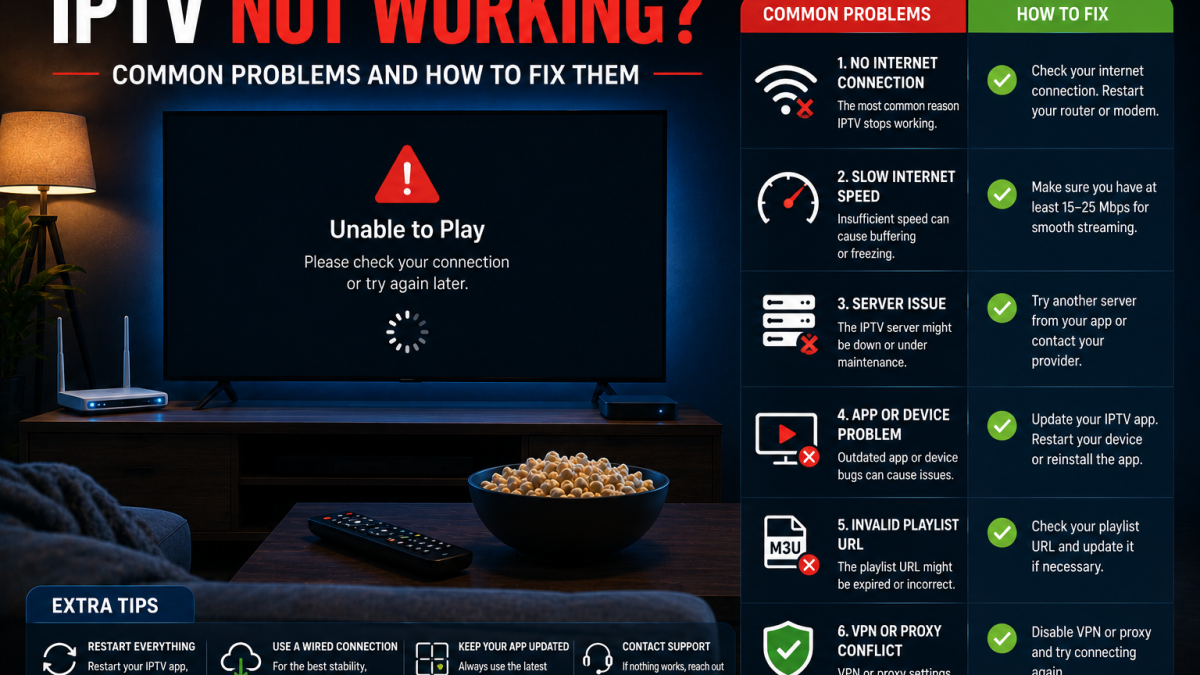
When IPTV is not working, the cause is almost always one of five things: your internet connection, your login credentials, the IPTV app, your device, or the provider’s server. The fastest path to a fix is identifying which one is the problem before changing anything.
This guide walks through each category in sequence — start with the quick checks, then follow the section that matches your specific symptom.
Why Is My IPTV Not Working?
IPTV delivers content over your internet connection through a player app using login credentials or a playlist link. If any part of that chain fails, the result can look the same: channels don’t load, the app shows an error, or the screen stays black.
Common root causes:
- Internet or home network issue — IPTV can’t receive the data it needs
- Incorrect login credentials — wrong username, password, or server URL prevents authentication
- Expired or inactive subscription — the provider’s server rejects the connection
- IPTV player app problem — outdated app, corrupted cache, or decoder mismatch
- Device issue — low storage, background apps, or device-specific configuration
- Temporary provider server issue — server is overloaded or under maintenance
The key principle: test one area at a time. Changing multiple things simultaneously makes it impossible to know what actually fixed the problem.
Quick Checks Before You Start Troubleshooting
Before going deeper, try these in order. They resolve a significant proportion of IPTV issues in under two minutes:
- Confirm your internet works — open a browser or another streaming app. If YouTube or any website loads normally, your internet connection is up.
- Force-close the IPTV app and reopen it — do not just minimize it. Force-close completely, then relaunch. On Firestick: hold Home > App Switcher > swipe up to close. On Android: Settings > Apps > Force Stop.
- Restart your streaming device — a full power cycle clears temporary memory issues.
- Restart your router — unplug it for 30 seconds, let it fully reconnect (60–90 seconds), then test.
- Check your credentials carefully — confirm your username, password, and server URL are entered exactly as provided.
- Check whether your subscription is active — if your plan has expired, all channels stop loading simultaneously.
- Try a different channel — if only one or a few channels fail while others work, the problem is stream-specific, not your setup.
If none of these resolve it, continue with the section that matches your specific symptom.
Check Your Internet Connection
IPTV relies on a continuous stream of data from the provider’s server. Even if websites load normally, your internet connection may not be consistent enough to maintain a live stream.
Diagnostic steps:
- Open YouTube or any video site and play a video. If it buffers or fails, your internet connection is the issue — not IPTV specifically.
- If YouTube plays fine but IPTV fails, your connection is working but something specific to IPTV is causing the problem. Continue to the next sections.
- If you’re on Wi-Fi, try moving closer to your router or using a wired Ethernet connection if one is available. IPTV streams are more sensitive to signal fluctuation than general web browsing.
Mobile data test: If possible, temporarily disable Wi-Fi on your device and test IPTV over mobile data. If it works on mobile data but fails on your home Wi-Fi, the problem is your home network or router — not the provider’s server. If it fails on both, the issue is more likely on the provider’s side or with your credentials.
For a full breakdown of internet speed requirements for IPTV, a dedicated guide covering this topic is available from FoxTele.
Check Your Username, Password, and Server URL
Authentication errors are one of the most common causes of IPTV suddenly not working — and they’re almost always caused by a small mistake in the credential entry.
Common credential errors:
- Extra space before or after the username or password (invisible but breaks authentication)
- Wrong capitalization — credentials are case-sensitive
- Incorrect server URL — missing
http://, wrong port number, or wrong server address - Outdated credentials — some providers update their server URL without prominently notifying subscribers
What to do:
- Delete all three credential fields (username, password, server URL) completely
- Copy and paste them fresh from your provider’s original welcome email — do not retype manually
- Confirm the server URL includes
http://orhttps://at the beginning and the correct port number (for example:http://yourprovider.com:8080) - Re-enter and test
If you’ve been sharing your M3U URL or Xtream Codes credentials publicly (on a forum, in a group chat, or with someone outside your household), another user may have depleted your connection limit or triggered an account suspension. Treat your credentials as you would any account password — keep them private.
Check Whether Your IPTV Subscription Is Active
An expired or suspended subscription causes the same symptom as a network problem: all channels stop loading simultaneously with no clear error message.
How to check:
- Review your provider’s original welcome or renewal email for the subscription expiry date
- If you have access to a provider account portal, log in and check the account status directly
- Contact your provider’s support and ask them to confirm whether your account is active and connecting successfully — a legitimate provider can check this in real time
If your subscription has expired, the fix is renewal — not troubleshooting the app or network.
Restart the IPTV App and Your Device
If your credentials are correct and your subscription is active, the problem may be that the app is in a stuck state — which a simple restart resolves.
Force-close the IPTV app:
- Firestick: Hold the Home button > App Switcher > swipe up on the IPTV app to close it completely
- Android TV / Android Box: Settings > Apps > select your IPTV app > Force Stop
- Android phone/tablet: Settings > Apps > select your IPTV app > Force Stop
- Smart TV: varies by platform — check your TV’s app management menu
After force-closing, reopen the app and test before restarting the device itself.
Restart your device: If force-closing the app doesn’t help, a full device restart clears temporary data that a force-close doesn’t remove.
Clear the IPTV App Cache
A corrupted or overfull cache can prevent channels from loading, cause black screens, or produce login errors — even when credentials and network are fine.
Important distinction: Clear Cache and Clear Data are different operations.
- Clear Cache — removes temporary files only. Safe. Does not affect your login or settings.
- Clear Data — resets the app completely. This removes your saved login credentials and all settings. You will need to re-enter everything from scratch.
Start with Clear Cache only. Only use Clear Data as a last resort if cache clearing doesn’t help.
On Android devices and Firestick: Settings > Apps (or Applications) > Manage Installed Applications > select your IPTV app > Clear Cache
On Smart TVs: Cache clearing is available through the TV’s system settings menu but the location varies by brand and firmware version — consult your TV manufacturer’s support documentation.
After clearing cache, reopen the app and test without restarting the device first.
Update Your IPTV Player
IPTV player apps receive updates that maintain compatibility with provider streaming protocols. An outdated app version can gradually lose the ability to authenticate correctly or load playlists — especially if the provider has updated their server software.
Check your device’s app store for available updates to your IPTV player. On Firestick, check the Amazon Appstore. On Android, check Google Play. On Samsung or LG Smart TVs, check the respective app store.
If an update is available, install it and test before trying other steps.
Try Another IPTV Player
If the problem persists after clearing cache and updating, testing the same credentials in a different player app helps identify whether the issue is app-specific or subscription-wide.
The same Xtream Codes credentials (server URL, username, password) or M3U link can be entered into any compatible IPTV player. If a second player loads your channels successfully, the issue is specific to the first app — reinstalling it or adjusting its settings will likely resolve it.
If the same credentials fail in multiple different apps, the issue is almost certainly the credentials themselves, your subscription, or the provider’s server — not the player.
For a comparison of the two most widely used IPTV players, the TiviMate vs IPTV Smarters guide covers their differences across devices.
IPTV Channels Not Loading but the App Opens
If the app opens and your channel list appears, but channels don’t play when you select them, the problem is at the stream level rather than authentication.
Steps to diagnose:
- Try several different channels — not just one. If one channel fails but others play, the issue is that specific stream (possibly temporary or stream-specific on the provider’s side).
- Try a channel in a different category — live sports, general entertainment, international. If only one category fails, it may be a specific server or stream group.
- Check whether the EPG (guide information) loaded correctly — if channels appear with proper guide data but don’t play, authentication worked but the stream itself isn’t connecting.
- Restart the app and try again — temporary connection timeouts can cause channels to fail to launch even when the playlist loaded successfully.
IPTV Shows a Black Screen
A black screen when selecting a channel is one of the most reported IPTV problems. The cause depends on whether there is sound.
Black screen with no sound: The app may not be connecting to the stream at all, or may be trying to decode a video format it doesn’t support.
- Try restarting the app and selecting the channel again
- If the problem affects all channels: check your internet connection and credentials
- If the problem affects only specific channels: try a different channel first to isolate it
Black screen with sound (audio plays, no video): This almost always indicates a video codec mismatch — the stream uses a video format your device’s hardware decoder doesn’t handle.
- In TiviMate: go to Settings > Playback > Decoder and switch between Hardware and Software decoding
- In IPTV Smarters Pro: go to Settings > Player Settings and toggle Hardware Acceleration
Switching decoder modes resolves this problem in most cases without any other changes needed.
IPTV Playlist Not Loading
If your channel list fails to load entirely after entering credentials:
- Re-enter your credentials using copy-paste, not manual typing
- Confirm the server URL includes the correct protocol and port
- Check whether your internet connection can reach the provider’s server (test mobile data vs. home Wi-Fi)
- Try a different IPTV player app to isolate whether the issue is the app or the credentials
This section is intentionally brief — a dedicated FoxTele article covering M3U playlist issues in detail is available.
IPTV EPG Not Working
If your channels load and play correctly but the Electronic Program Guide shows no schedule information:
- The guide data comes from your provider, not the player app — if the provider’s EPG feed is unavailable, no app can display it
- Try refreshing the EPG from within your player app’s settings
- Restart the app after refreshing
Missing EPG does not prevent channels from playing. This section is intentionally brief — a dedicated FoxTele article covering EPG troubleshooting in detail is available.
IPTV Is Buffering or Freezing
Buffering and freezing are different from IPTV not working entirely — channels load but playback is interrupted.
For a complete guide to diagnosing and fixing IPTV buffering, see How to Fix IPTV Buffering. That article covers internet speed, Wi-Fi vs. Ethernet, player settings, device performance, and how to determine whether the problem is on your side or the provider’s.
IPTV Works on One Device but Not Another
If IPTV loads correctly on one device but fails on another, consider these causes:
Simultaneous connection limit: Most IPTV subscriptions allow only one active stream at a time per account. If your subscription is already being used on the first device, the second device will be refused — often with an authentication-style error that looks like a login problem. Force-close the IPTV app on the first device before testing on the second.
Different credentials entered on each device: If the credentials were typed manually on each device, a typo on one of them may be the difference. Verify both devices have exactly the same server URL, username, and password.
Different network on one device: If one device is on Wi-Fi and another is connected via Ethernet, or if one device is on a different network, the network condition may be different rather than the subscription.
Different app versions: An older version of the player app on one device may have compatibility issues the updated version resolves.
Device-specific issue: Check that the device with the problem has enough free storage and that background apps are closed before testing.
When the Problem May Be on the Provider’s Side
Some IPTV problems are outside your control. If you have confirmed that:
- Your internet connection works normally on other apps
- Your credentials are correct and your subscription is active
- The same credentials fail in multiple different apps and on multiple devices
…then the problem is likely on the provider’s server side.
Signs of a provider-side issue:
- IPTV suddenly stops working for all channels at the same time, with nothing changed on your end
- Works on mobile data but fails on all home networks (rules out your home network)
- Other users of the same provider report the same problem at the same time
What to do: Contact your provider’s support and report the specific symptoms — when it started, which channels are affected, and what diagnostic steps you’ve already taken. A reliable provider can check whether your account is connecting successfully and whether their servers are experiencing any issues.
IPTV Not Working on Specific Devices
IPTV Not Working on Android
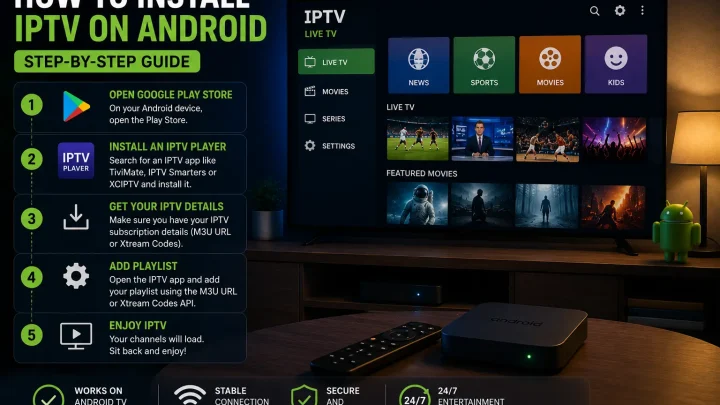
Start with force-closing the app and clearing the cache (Settings > Apps > select app > Storage > Clear Cache). Check that your Android device has adequate free storage — insufficient storage can cause apps to malfunction. Update the IPTV player app through Google Play. For setup guidance, see How to Install IPTV on Android.
IPTV Not Working on Firestick
Force-close the app via the App Switcher (hold Home button, swipe up). Clear the app cache: Settings > Applications > Manage Installed Applications > select app > Clear Cache. Check available storage: Settings > My Fire TV > About > Storage — keep at least 500 MB free. On Vega OS Firestick models (Fire TV Stick 4K Select, Fire TV Stick HD 2026), only apps available in the Amazon Appstore can be installed. For full Firestick setup guidance, see How to Install IPTV on Firestick.
IPTV Not Working on Smart TV
Clear the IPTV app cache through your TV’s system settings (location varies by brand and firmware — consult your TV manufacturer’s support). Update the IPTV player app through your TV’s app store. If the native Smart TV player app continues to fail, connecting an Android TV box or Firestick to the TV’s HDMI port and using a more capable player app there is a practical alternative.
IPTV Not Working on iPhone or iPad
iOS IPTV apps (such as IPTV Smarters, listed as Smarters Player Lite in the App Store) update through the Apple App Store — check for and install any available updates. Re-enter your credentials directly rather than relying on saved data if you suspect corruption. Confirm your subscription is active. For iOS setup guidance, see the FoxTele iPhone IPTV guide.
IPTV Not Working on Windows PC
Update your IPTV player app (IPTV Smarters for Windows, or an alternative). Clear the app’s cache from within the app’s settings. Confirm your firewall or security software is not blocking the app’s network access — Windows Defender or third-party antivirus software can sometimes block streaming connections. Test temporarily with your firewall disabled to identify whether this is the cause.
A Simple IPTV Troubleshooting Checklist
Follow this sequence before contacting your provider:
- Confirm internet works on another app or website
- Force-close and reopen the IPTV app
- Restart your streaming device
- Restart your router (unplug 30 seconds, wait for full reconnection)
- Re-enter credentials using copy-paste from your provider’s email
- Confirm your subscription is active
- Test a different channel to determine if the problem is stream-specific
- Clear the app’s cache (Cache only — not Data)
- Update the IPTV player app
- Test the same credentials in a different IPTV player app
- Contact your provider with a description of your symptoms and the steps you’ve already tried
FoxTele Support
If you are a FoxTele subscriber experiencing a problem, contact support with a description of your symptoms and a list of the troubleshooting steps you’ve already completed. FoxTele can confirm in real time whether your account is active and connecting successfully.
- Email: support@foxtele.us
- WhatsApp: +1 450-485-2195
If you’re evaluating FoxTele as a new service, explore FoxTele plans to review the available plan durations and the order process before subscribing.
Still Having Trouble? FoxTele Support Can Help.
If you are a FoxTele subscriber and have worked through these steps without resolution, contact support directly. FoxTele can check whether your account is active and connecting in real time. If you are not yet subscribed and want to learn more about FoxTele, review the available plan options before submitting an order request.
Frequently Asked Questions
Why has my IPTV suddenly stopped working?
The three most common causes are an expired subscription, a provider server URL that has changed, or a temporary server issue. Start by confirming your subscription is active and re-entering credentials from a fresh copy of your provider’s welcome email.
Why does IPTV work on Wi-Fi but not mobile data, or vice versa?
This indicates a network-specific issue rather than a problem with your app or subscription. If it works on mobile data but not home Wi-Fi, restart your router and test with Ethernet. If it works at home but not on mobile data, your mobile connection may be too slow or subject to carrier throttling.
Why are IPTV channels not loading?
Channels may fail to load due to incorrect credentials, an expired subscription, a stream-specific issue, or a provider server problem. Test different channels to isolate whether the problem is all channels or specific ones. If all channels fail, check credentials and subscription status first.
Why does my IPTV app show a black screen?
A black screen with no sound usually means the stream failed to connect. Force-close the app and retry. A black screen with audio suggests a video codec mismatch — switch between hardware and software decoding in your player app’s settings (TiviMate: Settings > Playback > Decoder; IPTV Smarters: Settings > Player Settings > Hardware Acceleration).
Should I reinstall my IPTV app?
Yes, when clearing cache doesn’t help and the app is behaving unusually. Note your credentials before reinstalling — it removes all saved data. Reinstalling replaces corrupted files that cache clearing can’t fix.
Can incorrect Xtream Codes cause IPTV to stop working?
Yes — a single wrong character, extra space, or missing http:// in the server URL prevents authentication entirely. Always copy-paste credentials from your provider’s email rather than retyping them.
Why does IPTV work on one device but not another?
The most common reason is that your subscription only allows one simultaneous stream and is already active on another device. Force-close the app on all other devices first. Also check that credentials are entered identically on both devices.
How do I know whether the problem is my internet or my IPTV provider?
Test IPTV on a different network — switch from home Wi-Fi to mobile data. If it works on one network but not the other, the issue is network-specific. If it fails everywhere, test the same credentials in a second player app. If they fail across all apps and networks, contact your provider — they can confirm in real time whether your account is connecting.