Learning how to install IPTV on Android is straightforward once you understand two things: an IPTV player app and an IPTV subscription are separate. The player is software you install from Google Play. The subscription is what you pay for separately — it provides the login credentials or playlist link that you enter into the player to access your channels.
This guide walks through the full setup from choosing a player to loading your first channel, and covers common problems you might run into along the way.
What You Need Before Installing IPTV on Android
Before opening the Play Store, confirm you have the following ready:
- An Android smartphone or tablet running Android 5.0 or later (most current devices will meet this requirement)
- A stable internet connection — Wi-Fi is strongly recommended for initial setup and regular viewing; mobile data works but consumes significant bandwidth (see the performance section below)
- IPTV subscription credentials from your provider — typically either Xtream Codes details (a server URL, username, and password) or an M3U playlist URL. These are sent by your provider after you subscribe.
- Access to the Google Play Store on your device
You do not need to enable any special settings or sideload apps to set up IPTV on an Android phone or tablet. Everything needed is available directly through Google Play.
How to Install IPTV on Android
The process follows the same sequence regardless of which player app you choose.
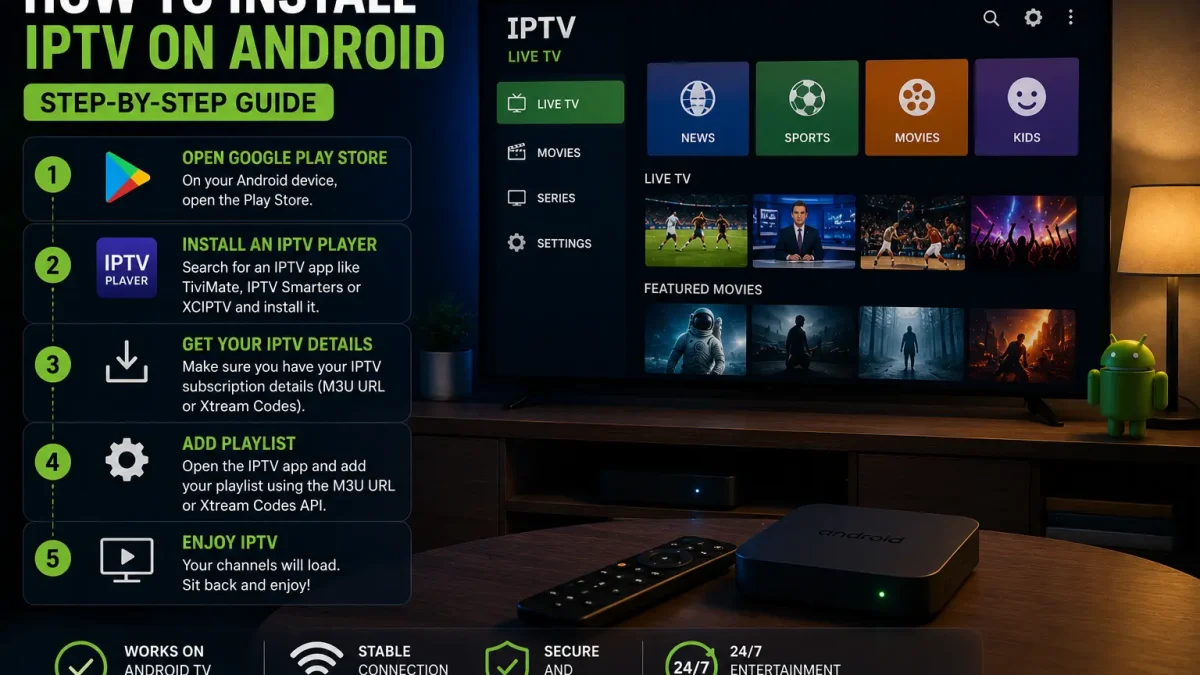
Step 1 — Open the Google Play Store
On your Android phone or tablet, open the Play Store app. Make sure you’re signed in with a Google account.
Step 2 — Choose and Install an IPTV Player
Search for your chosen IPTV player app by name and tap Install. See the player section below if you haven’t decided which to use. For most beginners, IPTV Smarters Pro is the recommended starting point — it’s free, straightforward to set up, and available directly in the Play Store.
Wait for the installation to complete, then tap Open.
Step 3 — Open the App and Accept the Terms
On first launch, IPTV Smarters Pro (and most other players) will ask you to accept its terms of service. Read and accept these before proceeding.
Step 4 — Add Your IPTV Subscription Details
This is where you connect your subscription to the player. Tap Add New User (or Add Playlist, depending on your app).
You will typically see options to add credentials using Xtream Codes API or M3U URL — the section below covers both methods.
Step 5 — Wait for the Playlist to Load
After entering your credentials, the app contacts your provider’s server to verify your subscription and download your channel list. This usually takes 15–60 seconds depending on your connection speed and the size of your channel list. Larger playlists take longer.
Step 6 — Start Watching
Once the playlist loads, your channels, VOD library (if included in your subscription), and Electronic Program Guide (EPG) will be accessible through the player’s interface. Navigate to Live TV to find your channels, or Movies and Series for on-demand content if your subscription includes it.
How to Add Your IPTV Subscription Using Xtream Codes
Xtream Codes is the most common credential format for IPTV subscriptions and the recommended method when your provider offers it. It uses three pieces of information your provider sends you:
- Server URL — the address of your provider’s server (for example:
http://yourprovider.com:8080) - Username — your account username, exactly as provided
- Password — your account password, case-sensitive
In IPTV Smarters Pro:
- From the home screen, tap Add New User
- Select Login with Xtream Codes API
- Enter a Profile Name (any label you choose — for example “FoxTele”)
- Enter your Username, Password, and Server URL exactly as provided
- Tap Add User
The app will verify your credentials with the server and load your Live TV, Movies, and Series sections automatically. Your EPG typically loads with the Xtream Codes login without additional steps.
Important: Enter credentials by copying and pasting from your provider’s welcome email wherever possible. A single incorrect character — particularly in the server URL or password — will prevent the playlist from loading entirely. The most common error is a missing http:// prefix or an incorrect port number in the server URL.
How to Add an M3U Playlist on Android
If your provider supplies an M3U URL instead of Xtream Codes, the process is slightly different. An M3U URL is a single long web address that contains your entire channel list.
In IPTV Smarters Pro:
- From the home screen, tap Add New User
- Select Load Playlist or File
- Enter a Profile Name
- Paste your M3U URL exactly as provided
- Tap Add User
The app imports the playlist from the URL. M3U imports typically take longer than Xtream Codes — a large channel list can take one to two minutes to fully load on first import.
EPG with M3U: Unlike Xtream Codes (which pulls EPG data automatically in most setups), M3U playlists may require a separate XMLTV EPG URL to populate your program guide. If your provider supplies an EPG URL alongside your M3U link, enter it in the app’s EPG settings after importing the playlist. If no EPG URL is provided, the guide may remain empty or partially populated.
Xtream Codes vs M3U on Android: A Quick Comparison
| Xtream Codes | M3U Playlist | |
|---|---|---|
| Setup complexity | Lower — three fields to fill | Low — one URL to paste |
| EPG integration | Automatic in most cases | May require separate EPG URL |
| Live TV / VOD / Series separation | Automatic | Depends on provider’s playlist structure |
| Channel switching speed | Generally faster | Can be slower on large playlists |
| Portability | Requires all three credentials | Single URL is easily shareable |
If your provider offers both formats, Xtream Codes is generally the better starting point for Android because the player app organizes your content automatically and the EPG loads without additional configuration. M3U is useful when Xtream Codes is unavailable or when you manage playlists across multiple providers.
Which IPTV Players Can You Use on Android?
Several IPTV players are available for Android phones and tablets through Google Play. Each has different strengths.
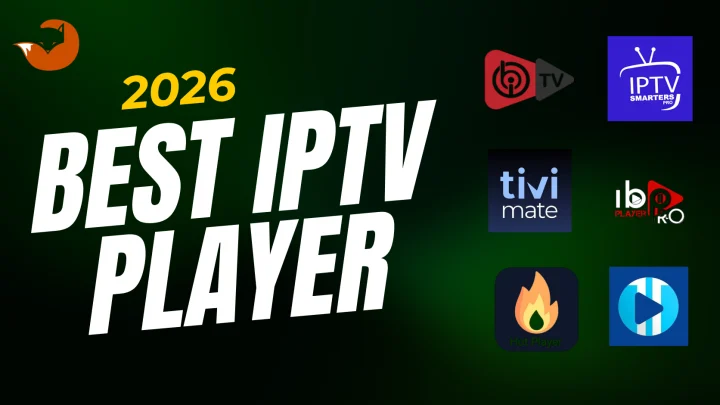
IPTV Smarters Pro is the most widely recommended starting point for beginners. It supports both Xtream Codes and M3U, organizes content into Live TV, Movies, Series, and Catch-Up tabs, includes parental controls, and includes a search feature that scans across your entire library. It’s free to download and use on Android.
TiviMate is widely regarded as the strongest IPTV player for Android TV boxes and television-based devices. It is also available on Android phones and tablets via Google Play — though as a Leanback (TV-optimized) app, it may not appear in Play Store search results on all mobile devices. If it doesn’t appear when searching, try installing it from the web Play Store (play.google.com) while signed into your Google account. TiviMate’s Premium upgrade (available through the separate TiviMate Companion app) unlocks multiple playlists, recording, and multi-view. For a detailed comparison of these two apps, the TiviMate vs IPTV Smarters guide covers their differences in depth.
GSE Smart IPTV is a well-regarded option for users who manage their own playlists or prefer more granular control over their setup. Available on Google Play.
OTT Navigator is popular among users with large VOD libraries, due to its library-style browsing interface.
The credential setup process (entering Xtream Codes or M3U details) is broadly similar across all of these apps — the main differences are in interface style and which features are available free vs. paid.
How to Improve IPTV Performance on Android
If your streams are buffering or slow to load, work through these steps before assuming the problem is on the provider’s side.
- Use Wi-Fi rather than mobile data for home viewing. Even a fast 5G connection can be less stable than a solid Wi-Fi signal due to signal fluctuation.
- Connect to your router’s 5 GHz band rather than 2.4 GHz if your device supports it. The 5 GHz band offers faster speeds with less congestion in most home environments.
- Close background apps before streaming. Other apps using internet access or processing power can affect playback, particularly on older or lower-spec devices.
- Clear the IPTV app’s cache if playback becomes sluggish over time: Settings > Apps > select your IPTV app > Storage > Clear Cache. Do not select Clear Data — that removes your credentials.
- Restart the app and your router if buffering starts suddenly. A fresh connection often resolves temporary issues.
For a deeper breakdown of IPTV buffering causes and fixes across all devices, the How to Fix IPTV Buffering guide covers each root cause in detail.
A note on mobile data usage: If you plan to stream IPTV over a mobile data connection, be aware that HD streams typically consume approximately 2–4 GB of data per hour. 4K streams use considerably more. If you are on a limited mobile data plan, extended IPTV viewing over cellular can deplete your allowance quickly.
Casting to your TV: Most Android IPTV apps support Google Cast (Chromecast). If you have a Chromecast device or a Chromecast-enabled TV, you can cast your IPTV stream directly from your Android phone without installing a separate app on the TV. Look for the Cast icon in your player app during playback.
IPTV Not Loading on Android: Quick Fixes
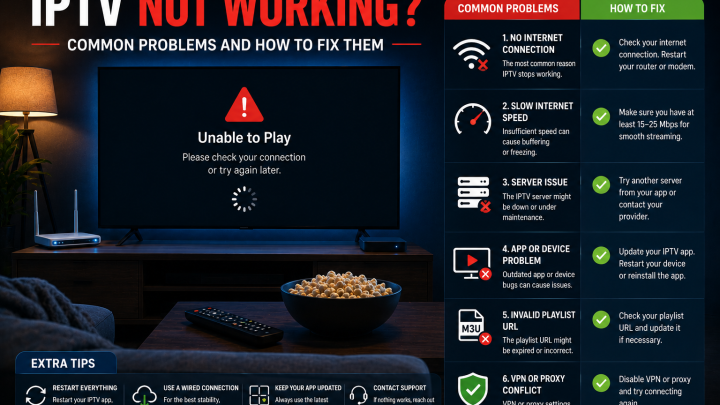
If channels fail to load after entering your credentials, work through these checks:
- Verify your credentials. The server URL, username, and password are all case-sensitive. Check for extra spaces at the start or end of each field — these are invisible but will cause authentication to fail. Copy-paste from your provider’s email rather than retyping.
- Check your internet connection. Open a web browser and load any webpage to confirm your device has internet access.
- Confirm your subscription is active. If your plan has expired, credentials will be rejected by the server regardless of how they’re entered.
- Try restarting the app fully (not just minimizing it) and re-entering your credentials.
- Update the app. Check Google Play for available updates to your IPTV player.
- Test a different player app. If credentials work in one app but not another, the issue is app-specific. If credentials fail in all apps, the issue is the credentials or your subscription.
This section covers the most common quick-fix scenarios. A future FoxTele article will cover the full range of IPTV troubleshooting in more detail.
Is IPTV Safe to Use on Android?
IPTV player apps from established developers available through Google Play go through Google’s Play Protect review process before being listed. Installing from the Play Store is the safest approach.
Practical security steps worth following:
- Download player apps from Google Play rather than APK files from unknown websites. If an app requires sideloading from an unofficial source, research the developer before proceeding.
- Keep your Android device updated. System and security updates address vulnerabilities that could affect any installed app.
- Protect your subscription credentials. Your IPTV username and password give access to your subscription — treat them as you would any account password. Do not share them publicly or post them on community forums.
- Keep your IPTV app updated via Google Play to benefit from the latest security and compatibility patches.
On the legal side: IPTV technology is a legal delivery method. Whether a specific service operates lawfully depends on whether it holds appropriate licenses for the content it distributes. Using apps from established developers to access a legitimate subscription from a transparent provider is the standard approach for lawful IPTV use.
A Brief Note on Android TV and Google TV
Android phones and tablets share the Android foundation with Android TV and Google TV devices, but the IPTV setup experience differs slightly:
- Android TV and Google TV have access to the full Google Play Store, where TiviMate and IPTV Smarters Pro both install directly
- The interface is designed for remote control navigation rather than touchscreen use
- Sideloading is supported on Android TV but not relevant for standard Play Store installs
This article focuses on phones and tablets. A dedicated Android TV setup guide is available separately for users with Android TV boxes or Google TV devices.
How FoxTele Works
FoxTele is a US-market IPTV service with prepaid, non-recurring plans. After subscribing, FoxTele sends your Xtream Codes credentials (server URL, username, and password) by email or WhatsApp — these are what you enter into your chosen Android IPTV player using the steps in this guide.
Plans:
| Plan | Price |
|---|---|
| 3 Months | US$30 |
| 6 Months | US$45 |
| 12 Months | US$70 |
Contact FoxTele: support@foxtele.us or WhatsApp at +1 450-485-2195
If you’re ready to compare plan options, explore FoxTele plans to review the current pricing and start an order request.
Ready to Start with FoxTele on Android?
FoxTele sends your Xtream Codes credentials by email or WhatsApp after order review — the same details you enter into your Android IPTV player using the steps in this guide. Review the available plan durations before submitting your order request.
Frequently Asked Questions
Can I install IPTV on any Android phone?
Yes, as long as your device runs Android 5.0 or later — which covers nearly all current phones. IPTV player apps from Google Play install the same way as any other app, with no special settings required.
Do I need a separate IPTV player app?
Yes. The player (such as IPTV Smarters Pro or TiviMate) is separate software that provides the interface for browsing and playing streams. The subscription provides the credentials you enter into the player. Neither works without the other — installing the player gives you an empty app until you add your subscription details.
Can I use an M3U playlist on Android?
Yes. Most Android IPTV players support M3U URLs. In IPTV Smarters Pro, select Load Playlist or File and paste your M3U URL. Note that M3U may not auto-load the EPG — check whether your provider supplies a separate EPG URL and enter it if so.
Can I use Xtream Codes on Android?
Yes. In IPTV Smarters Pro, select Login with Xtream Codes API and enter your server URL, username, and password. This is the recommended setup method when your provider offers it — it loads EPG data automatically and organizes content into Live TV, VOD, and Series sections.
Why is IPTV buffering on my Android device?
The most common causes are Wi-Fi signal instability, background apps consuming resources, or a full app cache. Try the 5 GHz Wi-Fi band, close background apps, and clear the app cache (Settings > Apps > select app > Storage > Clear Cache). See How to Fix IPTV Buffering for a full diagnostic guide.
Can the same setup work on an Android tablet?
Yes. Android phones and tablets run the same operating system and the same apps. The setup process is identical on both. The larger screen of a tablet generally provides a more comfortable EPG browsing and VOD viewing experience.
Is an IPTV player the same as an IPTV subscription?
No. The player is a free or low-cost app that provides the viewing interface. The subscription is purchased separately from a provider and gives you the credentials the player uses to load your channels. You need both.