Learning how to install IPTV on Firestick is straightforward once you know the two components involved: a player app that displays your channels, and a subscription that provides your access credentials. This guide covers both, from the first settings change to entering your login details and troubleshooting common problems.
Before getting into the steps, there is one important check to make — your Firestick model matters more than it did in previous years.
Before You Begin: Check Your Firestick Model
In 2026, Amazon introduced a new operating system called Vega OS on two Fire TV Stick models. Vega OS does not support installing apps from outside the Amazon Appstore — a process called sideloading — which affects how you can set up IPTV.
Fire OS Devices — Sideloading Supported
These devices run Fire OS (an Android-based system) and support both Appstore installs and sideloading:
- Fire TV Stick 4K (all generations through 4K Plus and 4K Max)
- Fire TV Cube (current models)
- Fire TV Smart TVs (Toshiba, Insignia, Amazon-branded)
- Fire TV Stick HD 2024 model
If you have any of these, proceed with the full guide below.
Vega OS Devices — Sideloading Not Supported
These two models run Vega OS and cannot sideload apps or use the Downloader app:
- Fire TV Stick 4K Select (released October 2025)
- Fire TV Stick HD 2026 (released April 2026)
If your device runs Vega OS, you can only install apps available in the Amazon Appstore. Check whether your preferred IPTV player app is available there before proceeding. If it is not, the sideloading method in this guide will not work on your device.
How to check your operating system: Go to Settings > My Fire TV > About. If the software version starts with "OS" followed by a 1, your device runs Vega OS. If it reads "Fire OS" followed by a 3, 5, 6, 7, 8, or 14, your device runs Fire OS and sideloading is supported.
What You Need Before Installing IPTV on Firestick
Confirm the following before starting the setup process:
- A compatible Amazon Firestick or Fire TV device (see model check above)
- A stable Wi-Fi connection — or an Ethernet adapter if you plan to use a wired connection
- An IPTV subscription with credentials from your provider (username, password, and server URL — or an M3U playlist link)
- Knowledge of which player app your provider recommends or supports
- If sideloading is needed: confirmation that you are downloading the app from the official developer's source
If you do not yet have a subscription, you need one before completing the credential setup steps below.
Understanding the Two Components: Player App and Subscription
For a foundation, read what IPTV is and how it works.
Many first-time users expect that installing an app gives them television content. It does not.
Setting up IPTV on Firestick requires two separate things:
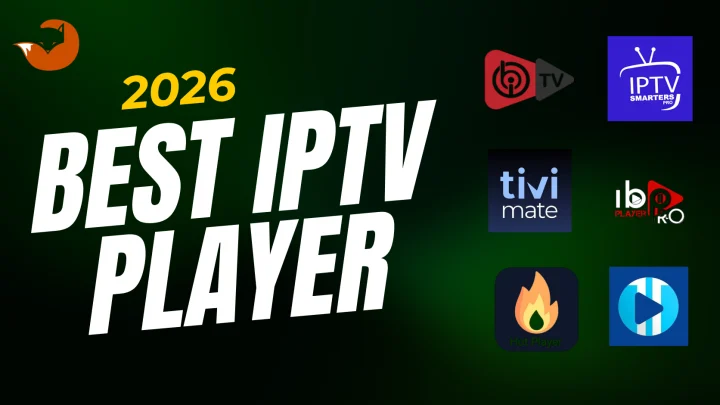
1. An IPTV player app — this is the software installed on your Firestick. It provides the interface for browsing channels and playing streams. Popular examples include TiviMate and IPTV Smarters Pro. The player app does not include any channels — it is empty until you connect it to a subscription.
2. An IPTV subscription — this is purchased separately from a provider. After you pay, your provider sends you access credentials: typically a username, a password, and a server URL (Xtream Codes format), or a long M3U playlist link. You enter these credentials into your player app.
Both components are required. The player app without credentials shows nothing. Credentials without a player app cannot be used.
How to Install IPTV on Firestick
There are two installation methods. Always check Method 1 first — if your IPTV player is available directly from the Amazon Appstore, that is the simpler and preferred approach.
Method 1 — Install from the Amazon Appstore
Some IPTV player apps are available directly in the Amazon Appstore. If your provider recommends one that is listed there, this is the most straightforward installation method and does not require any settings changes.
See Amazon Fire TV app installation for the official installation flow.
Steps:
- From the Fire TV home screen, navigate to the search icon (magnifying glass) at the top of the screen, or use the Alexa Voice button on your remote.
- Type the name of the IPTV player app your provider recommends.
- If the app appears in the results, select it and choose Get or Download.
- Wait for the installation to complete, then open the app.
- Proceed to the "How to Add Your IPTV Subscription Details" section below.
If the app does not appear in Appstore search results, or if your provider's recommended player is only available as an APK file, proceed to Method 2.
Method 2 — Sideload an IPTV Player Using Downloader
If the IPTV player app you need is not in the Amazon Appstore, you can install it using a process called sideloading. This involves enabling a setting in Developer Options and using an app called Downloader to retrieve and install the APK file.
Important before proceeding:
- This method only works on Fire OS devices (see the model check at the top of this guide)
- Only download APK files from the official website of the app developer, not from third-party APK mirror sites. Amazon notes that apps installed from outside the Appstore have not been subject to their quality-assurance process.
- After installation, delete the APK installer file from Downloader to free up storage space.
Step 1 — Enable Developer Options
Developer Options is a hidden menu on Fire TV devices. You need to unlock it before the sideloading permission can be enabled.
- Go to Settings (the gear icon on the right side of the home screen).
- Select My Fire TV. On some Fire TV Smart TV models, this may be labeled Device & Software — the process is identical.
- Select About.
- Highlight your device name (for example, "Fire TV Stick") and press the Select button on your remote seven times in quick succession.
- A message at the bottom of the screen will confirm that Developer Options has been unlocked.
- Press the back button to return to the previous menu — Developer Options should now be visible.
Note: Menu names can differ between Fire OS versions and device models. If you see "Device & Software" instead of "My Fire TV," the steps are the same. If Developer Options is already visible on your device, skip directly to Step 2.
Step 2 — Enable Installation from Unknown Sources
- Select Developer Options from the My Fire TV menu.
- Depending on your Fire OS version, you will see one of two options:
- Apps from Unknown Sources — select it and turn it ON
- Install Unknown Apps — select it, then find Downloader in the list and enable it specifically for that app
- Confirm the security warning when prompted. This setting allows apps installed through Downloader to run on your device.
Step 3 — Install the Downloader App
Downloader is a free app available in the Amazon Appstore, created by AFTVnews. It allows you to download and install APK files directly on your Fire TV.
- From the Fire TV home screen, search for Downloader.
- Select the official Downloader app (published by AFTVnews) and choose Get to install it.
- Open Downloader and grant any file access permissions it requests.
Step 4 — Download and Install Your IPTV Player
- In Downloader, select the URL entry bar and type the direct download link provided by your IPTV player app's official website. Do not use APK links from unverified third-party sites.
- Press Go. The download will begin.
- When the download completes, Downloader will prompt you to install the app. Select Install.
- After installation completes, select Done (not Open) to return to Downloader.
- Delete the APK installer file — Downloader will offer this option, or you can find it in Downloader's file manager. Removing it frees up storage on your Firestick.
Your IPTV player app will now appear in the Apps section of your Fire TV home screen.
How to Add Your IPTV Subscription Details
Once your player app is installed, you need to connect it to your subscription by entering the credentials your provider supplied.
IPTV subscriptions typically use one of two credential formats. Your provider will tell you which one you have.
Entering Xtream Codes Credentials
Xtream Codes (also called Xtream API login) uses three pieces of information:
- Server URL — the address of your provider's server (example format:
http://yourprovider.com:port) - Username — your account username, supplied by the provider
- Password — your account password, supplied by the provider, case-sensitive
To enter these in your player app:
- Open the player app and look for an option labeled Add Playlist, Add Account, Xtream Codes API, or similar — the wording varies by app.
- Select the Xtream Codes or login option.
- Enter the server URL, username, and password exactly as provided. A single typo — especially in the server URL or password — will prevent the playlist from loading.
- Save or confirm. The app will contact your provider's server and download your channel list. This may take 30 to 60 seconds depending on your connection and the size of the channel list.
Entering an M3U Playlist URL
Some providers supply an M3U URL instead of Xtream Codes. This is a single long web address that contains your entire channel list.
- Open the player app and look for Add Playlist, Add M3U, or M3U URL in the menu.
- Enter the M3U URL exactly as provided. Copy and paste from your provider's welcome email whenever possible to avoid typing errors.
- Save or confirm. The app will load your channels from the M3U file.
If your provider supports both formats, Xtream Codes typically loads faster and allows the app to separate live TV from VOD and catch-up content more cleanly.
Common Firestick IPTV Setup Problems and Fixes
For manufacturer troubleshooting guidance, see Amazon Fire TV troubleshooting.
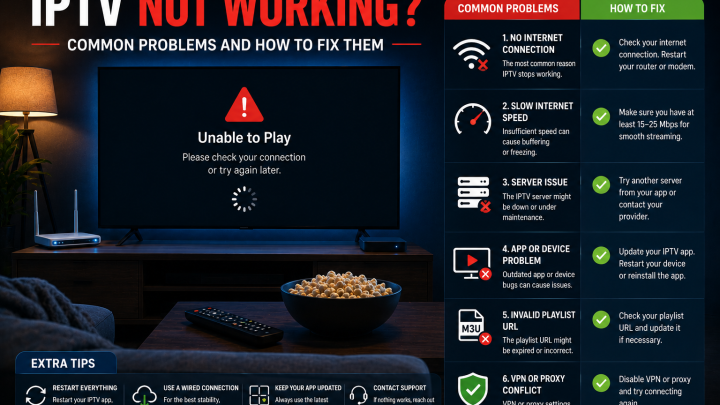
App won't install after downloading Check that the Developer Options setting for unknown apps is still enabled. On some firmware versions, a device restart can reset the permission. Re-enable it and try the installation again.
App does not appear in Appstore search Try searching with different terms or partial words. If the app genuinely is not in the Appstore for your region, the sideloading method is required — provided your device supports it.
Credentials rejected — incorrect username or password Re-enter your credentials carefully. Passwords are case-sensitive. Copy the server URL from your provider's welcome email rather than typing it. A common source of error is an extra space before or after a pasted entry.
Playlist loads but channels do not play Your subscription credentials are working, but the stream itself is failing. This is usually a network issue — see the playback tips below — or a provider-side condition. Contact your provider's support if network fixes do not resolve it.
Streams buffer or freeze during playback See the section below.
Firestick storage is low Go to Settings > Applications > Manage Installed Applications. Check for apps using significant storage. Delete APK installer files from Downloader's file manager if they were not removed after installation. Clearing the cache of the player app can also help.
Developer Options is missing from the menu Follow the seven-click unlock method described in the Developer Options section above. On some firmware updates, the menu becomes hidden again and needs to be re-unlocked.
Fire TV software needs updating Go to Settings > My Fire TV > About > Check for Updates. Running an outdated Fire OS version can cause compatibility issues with newer apps.
How to Improve IPTV Playback on Firestick
Buffering and playback issues on Firestick are most often caused by the home network, not the provider's server.
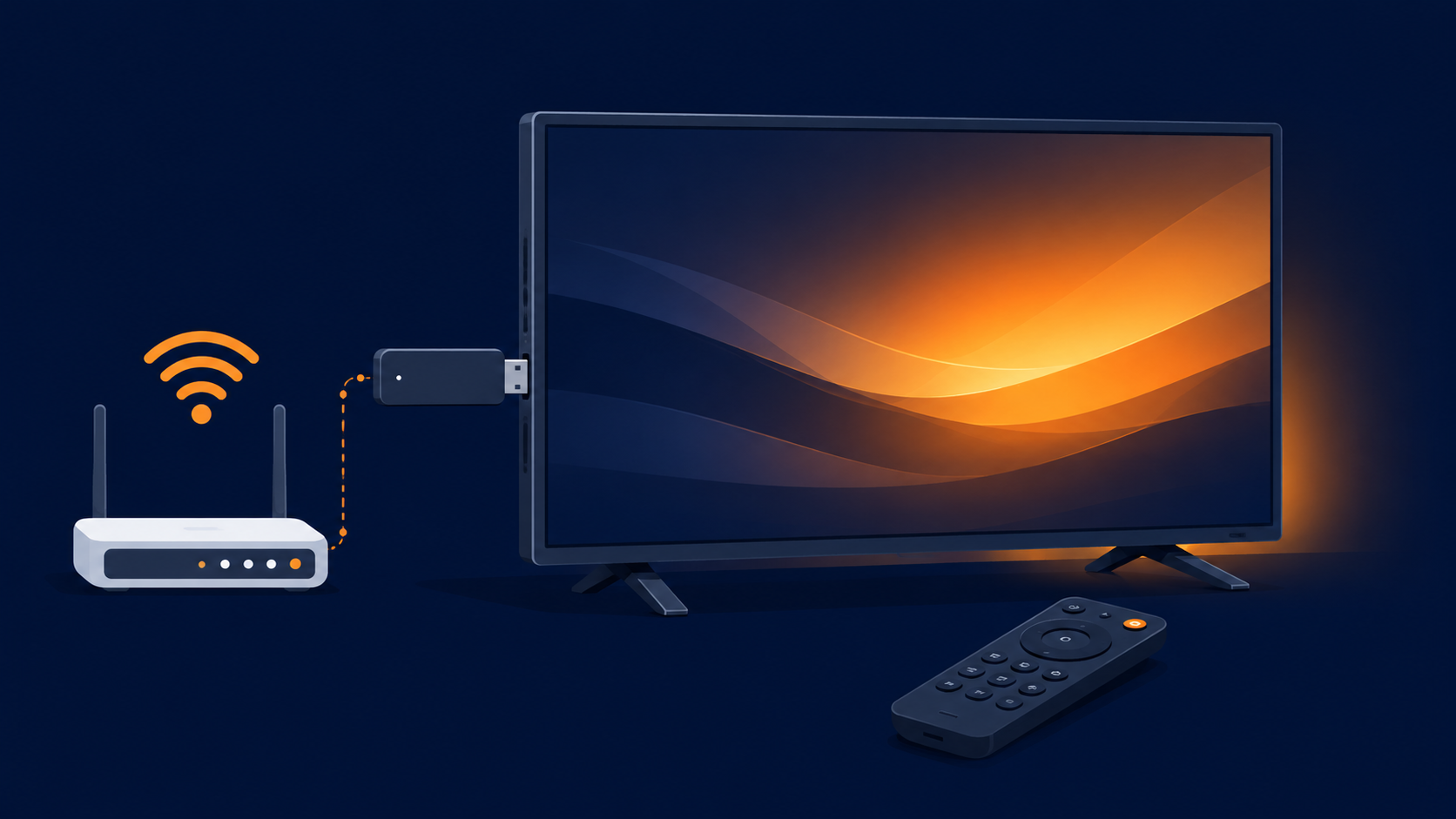
Use a wired Ethernet connection. A USB-to-Ethernet adapter for Firestick eliminates Wi-Fi variability and is one of the most effective single improvements for live stream stability. Wi-Fi works for many users, but live content is less forgiving of brief signal drops than on-demand video.
Position your router closer or remove obstructions. Wi-Fi signal weakens through walls and over distance. A Firestick far from the router on 2.4 GHz Wi-Fi may perform noticeably worse than one on 5 GHz in the same room as the router.
Reduce network congestion. Other devices downloading, gaming, or video calling simultaneously share your available bandwidth. Testing with other devices inactive helps isolate whether bandwidth is the issue.
Restart your router and Firestick. Go to Settings > My Fire TV > Restart on the Firestick. Unplug your router for 30 seconds before restarting it. Both accumulate temporary data that can affect connection stability.
Clear the player app cache. Go to Settings > Applications > Manage Installed Applications > select your IPTV player app > Clear Cache. This does not delete your credentials or settings.
Lower the stream quality. If your connection cannot sustain a 4K or Full HD stream, switching to a lower quality setting in the player app reduces the required bandwidth. Check your player app's playback or video settings.
Streaming quality depends on multiple variables: your internet plan speed, Wi-Fi or Ethernet connection quality, the number of active devices on your network, Firestick performance, the player app version, and conditions on the provider's server. No single fix resolves all buffering — work through the list above systematically.
Common Beginner Mistakes to Avoid
Installing an IPTV player and expecting channels to appear. A player app is empty without subscription credentials. You need both components.
Skipping the device model check. If your Firestick runs Vega OS, sideloading will fail silently at the installation step. Check your model before starting.
Downloading APK files from unknown websites. Use only the official source for any app you sideload. Unofficial mirrors can distribute modified or unsafe versions of legitimate apps.
Leaving the APK installer file on the Firestick. APK files are large. Delete them after installation to keep storage available for the app itself and its data.
Entering credentials manually with typos. Copy and paste the server URL and M3U link from your provider's email whenever possible. A single incorrect character prevents the playlist from loading.
Assuming buffering is always the provider's fault. Test with an Ethernet connection and all other devices inactive before contacting your provider. Network conditions account for a significant proportion of playback issues.
Not confirming device compatibility before subscribing. Verify with your provider that your specific Firestick model is supported and that they have setup documentation for it before you pay.
Ready to Set Up Your IPTV Subscription?
If you have a compatible Firestick and understand the setup process, the next step is securing a subscription with credentials you can enter into your player app.
FoxTele is a US-market IPTV service with prepaid plans and no recurring billing.
Plans:
| Plan | Price |
|---|---|
| 3 Months | US$30 |
| 6 Months | US$45 |
| 12 Months | US$70 |
Order process: Select a plan on the FoxTele website, submit your order request, receive a payment link by email or WhatsApp, complete payment, then receive your setup and activation information — including the credentials you will need for the player app steps above.
Supported devices include: Amazon Firestick, Android TV and Android Box, Samsung and LG Smart TV, MAG Device, mobile and tablet, Windows PC, and Mac. Confirm compatibility for your specific device model before subscribing.
Contact FoxTele: support@foxtele.us or WhatsApp at +1 450-485-2195
Trial availability, refund terms, and stream limits should be confirmed directly with FoxTele before subscribing.
For more answers, visit the FoxTele FAQ.
Need Help Setting Up IPTV on Firestick?
If you have a compatible Firestick and are ready for the next step, review FoxTele plans or contact support before submitting your order request. FoxTele will send your credentials by email or WhatsApp after order review – those are the details you’ll enter into your player app to get started.
Frequently Asked Questions
How do I install IPTV on Firestick?
Install an IPTV player app on your Firestick — either from the Amazon Appstore if the app is available there, or using the Downloader app to sideload it if your device runs Fire OS. Then open the player app and enter the subscription credentials (username, password, and server URL, or an M3U link) that your IPTV provider supplies after you subscribe.
Do I need to sideload apps to use IPTV on Firestick?
Not necessarily. If your provider's recommended player app is available in the Amazon Appstore, you can install it directly without changing any settings. If the app is not in the Appstore, sideloading is required — but only on Fire OS devices. The 2025 Fire TV Stick 4K Select and the 2026 Fire TV Stick HD run Vega OS and cannot sideload apps at all.
What is the difference between an IPTV player app and a subscription?
The player app is software installed on your Firestick that provides the interface for browsing and playing content. The subscription is a separate paid service that provides access credentials — a username, password, and server address, or an M3U link. The player app is empty without credentials. You need both.
Where do I enter my IPTV username and password?
Inside your IPTV player app. After opening the app, look for an option labeled Add Playlist, Add Account, Xtream Codes API, or similar. Enter your server URL, username, and password exactly as your provider sent them. Copy and paste where possible to avoid typing errors.
Can I use M3U on Firestick?
Yes, as long as your player app supports M3U playlists. Most IPTV player apps accept both M3U links and Xtream Codes credentials. Look for an Add Playlist or M3U URL option in the app's menu and paste the full URL your provider supplied.
Why is my IPTV buffering on Firestick?
Buffering is most commonly caused by a Wi-Fi signal issue, insufficient available bandwidth, or network congestion from other devices. Test with a wired Ethernet adapter and with other devices inactive to isolate the cause. Restarting your router and clearing the player app's cache are also effective first steps. If the issue persists after all network checks, contact your provider's support.
This guide explains how to install IPTV on Firestick from device checks through player setup, credentials, and troubleshooting.
Firestick compatibility, Fire OS and Vega OS details, and Amazon Appstore availability are subject to change. Always verify your device model and operating system before beginning the setup process. Amazon's policies on app installation and Developer Options may be updated in future firmware releases. Nothing in this guide constitutes legal advice. Use all apps and services in accordance with their terms of service.