Finding the best IPTV for Firestick comes down to more than which provider has the longest channel list. It starts with knowing what your specific Firestick model can do — because not all current Firestick devices work the same way — and then applying consistent criteria to any provider before you pay.
This guide explains how to check your device, what a reliable provider looks like in practice, what to verify before subscribing, and how FoxTele fits into that picture based on confirmed facts only.
Check Your Firestick Model Before Choosing a Service
This is the most important step most buyers skip, and in 2026 it matters more than ever.
Amazon introduced a new operating system called Vega OS on two recent Firestick models. Vega OS devices cannot install apps from outside the Amazon Appstore — sideloading is not supported, and there is no workaround. Amazon's own developer documentation confirms: "Starting with Fire TV Stick 4K Select, all future Fire TV Sticks will run on Vega."
See Amazon Fire TV developer documentation for the official Fire TV platform guidance.
This directly affects which IPTV player apps you can install.
Fire OS Models — Full IPTV Compatibility
These Fire TV devices run Fire OS, Amazon's Android-based operating system. They support both Appstore installs and sideloading via the Downloader app:
- Fire TV Stick 4K (all generations through the 4K Plus and 4K Max)
- Fire TV Cube (current models)
- Fire TV Smart TVs (Toshiba, Insignia, Amazon-branded)
- Fire TV Stick HD — 2024 model only (the earlier version with Wi-Fi 5)
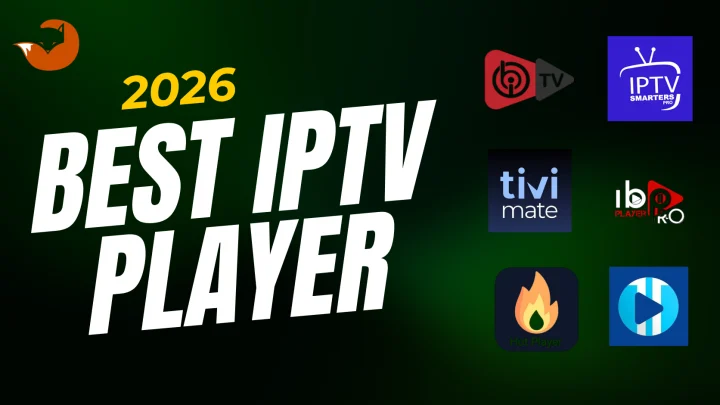
If you own any of these, the full range of IPTV player apps — including TiviMate and IPTV Smarters Pro — is available to you through either the Appstore or sideloading.
Vega OS Models — Amazon Appstore Only
These two models run Vega OS and are restricted to the Amazon Appstore:
- Fire TV Stick 4K Select (released October 2025)
- Fire TV Stick HD (released April 2026 — the newer version with Wi-Fi 6 and rounded corners)
On Vega OS devices, you can only use IPTV player apps available in the Amazon Appstore. TiviMate, which is not in the Appstore, cannot be installed on these models.
How to confirm your model's operating system: Go to Settings > My Fire TV > About. If the software version begins with "OS" followed by a "1", your device runs Vega OS. If it shows "Fire OS" with a version number starting with 3, 5, 6, 7, 8, or 14, your device runs Fire OS and supports sideloading.
For the full setup process once you have chosen a provider, the how to install IPTV on Firestick guide covers both installation methods step by step.
The IPTV Service and the Player App Are Two Different Things
Before choosing any provider, confirm you understand how these work together — because confusing them is the most common reason for post-payment frustration.
An IPTV subscription is what you pay for. After subscribing, your provider sends you access credentials: either a username, a password, and a server URL (Xtream Codes format), or a long M3U playlist link. These credentials give you access to the content — live channels, on-demand video, catch-up TV.
An IPTV player app is software installed separately on your Firestick. It reads your credentials, loads your channel list and Electronic Program Guide (EPG), and handles video playback. TiviMate and IPTV Smarters Pro are the most widely used options on Firestick. The player app is empty without credentials — it provides no content on its own.
You need both. The subscription without a player app cannot be watched. The player app without a subscription has nothing to display.
Some providers recommend or document specific player apps as part of their setup process. Others provide credentials only and expect you to source and configure a player independently. Confirm which applies before you subscribe, and verify that your recommended player is available for your specific Firestick model.
For background on how IPTV works more broadly, the foundational article in this cluster covers the full technical picture for beginners.
How to Choose the Best IPTV for Firestick
Use the following criteria to evaluate any provider before committing. These are the questions that reveal whether a service is genuinely suitable for your setup.
Firestick and App Compatibility
Ask any provider you are considering: which specific IPTV player app do you recommend for Firestick, and is that app available in the Amazon Appstore?
This matters because:
- If you have a Vega OS device (4K Select or HD 2026), you need an app available directly in the Appstore
- If you have a Fire OS device, both Appstore apps and sideloaded apps are options — but Appstore-available apps are simpler to install and update
- A provider who cannot name the specific player app they support on Firestick, or who lacks a Firestick setup guide, is providing incomplete information before you pay
Also confirm: does the provider's setup documentation match your actual device model and OS version? Generic "works on Firestick" claims without specifics are not sufficient verification.
App Installation Method — Appstore or Sideloading
Before subscribing, establish whether the player app your provider recommends requires sideloading or is available in the Amazon Appstore.
Appstore installation is the simpler path. No settings changes are required. The app updates automatically. This is the preferred method when available.
Sideloading requires enabling Developer Options and installing through the Downloader app. It is a legitimate Amazon feature — not a security breach — but it requires a few extra steps and is only available on Fire OS devices. If you have a Vega OS model, sideloading is not possible regardless of the method attempted.
A good provider will document which installation method applies to Firestick and provide clear instructions. If a provider's only guidance is a vague link to a third-party APK download site rather than the official app developer's source, treat that as a caution.
Login Method — M3U or Xtream Codes
Most IPTV providers deliver credentials in one of two formats. Your player app must support whichever format your provider uses.
Xtream Codes provides three items: a server URL, a username, and a password. This format loads faster, allows the player app to separate live TV from VOD and catch-up content cleanly, and is the more feature-rich option.
M3U playlist URL is a single long web address containing your channel list. Simpler and widely supported. Most player apps accept both formats.
Confirm your provider's credential format and verify your chosen player app supports it before subscribing.
Internet and Home Network Requirements
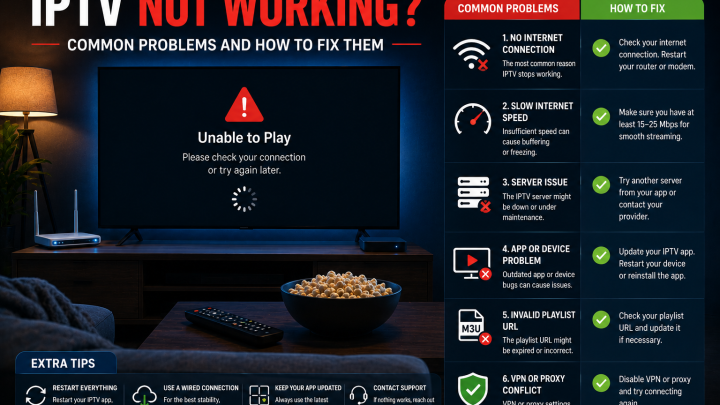
Your home network is as important as the provider's server quality. Buffering is most often a network issue, not a provider failure — but only systematic troubleshooting can identify which is the cause.
According to the FCC Broadband Speed Guide for streaming video:
- HD streaming (720p–1080p) generally requires 5–8 Mbps of stable download speed per active stream
- 4K content, where a provider offers it, requires substantially more — typically 25 Mbps or higher per stream
These figures apply per device. If multiple devices in your household stream simultaneously, bandwidth requirements multiply accordingly.
For Firestick specifically:
- A wired Ethernet connection via an Ethernet adapter eliminates Wi-Fi variability and is the most effective single improvement for live stream stability. Wi-Fi works for most users, but live sports in particular benefit from a wired connection.
- The 5 GHz Wi-Fi band delivers more consistent speeds than 2.4 GHz when the router is within reasonable range
- Peak evening hours (approximately 7–11 PM) can reduce available bandwidth as the neighborhood shares infrastructure capacity
- Running a speed test on your Firestick — not just on a phone — gives the most accurate picture of what the device actually receives
Firestick Storage and Performance
Storage is a practical factor that most buying guides omit entirely.
Firestick models have limited internal storage — typically 8 GB total, with less available after the operating system and pre-installed apps. A congested storage situation can slow app launches, cause cache errors, and contribute to playback instability.
Before and after installing a new IPTV player app:
- Check available storage via Settings > My Fire TV > About > Storage
- Delete APK installer files after sideloading — they serve no purpose once the app is installed
- Clear the IPTV player app's cache periodically (Settings > Applications > Manage Installed Applications > select app > Clear Cache) — do not select "Clear Data," which would delete your login credentials
- Remove apps you no longer use to free space for the IPTV app and its data
Newer Firestick models (4K Max in particular) have faster processors, more RAM, and better thermal management than older models like the Firestick Lite. This translates to faster channel switching, smoother EPG loading, and better 4K playback. The model you own affects the experience beyond just internet speed.
Plan Length and Stream Limits
Plan duration affects both cost and commitment. Most providers offer the same content access across all durations — only the effective monthly cost and length of commitment differ.
What to confirm before subscribing:
- Is this a one-time prepaid payment for the stated duration, or a recurring subscription that charges automatically? These are meaningfully different billing models and the distinction should be clearly stated before payment.
- How many simultaneous streams does the plan include? A single-stream plan means only one device can watch at a time across your entire account. If multiple household members want to watch simultaneously, confirm whether a multi-stream option exists.
- If you have not used this provider before, a shorter plan is lower risk — a few extra dollars per month is worthwhile insurance before committing to a year.
Support and Payment Transparency
Support quality is one of the most reliable indicators of provider reliability. Test it before you pay:
- Send a question via the provider's contact channel and evaluate both the response speed and whether the answer is specific to your question
- Check whether the provider has documented setup guides for Firestick specifically — not just a generic "works on all devices" claim
- Verify that the contact information on the provider's website is functional
Payment method affects your ability to dispute a charge if the service fails to deliver:
- Credit card, PayPal, or established payment processors create a traceable transaction with dispute options
- Providers accepting only cryptocurrency, gift cards, or wire transfers remove your recourse if the service is unsatisfactory
- Confirm whether your payment method choice affects anything about the plan or activation process
Trial and Refund Terms
If a provider offers a trial period, use it during peak evening hours on your actual Firestick — not a phone or a different device. Channel loading speed, EPG accuracy, and stream stability during high-traffic periods are what matter for daily use.
Read the refund policy before paying. Find it on the provider's website before checkout — not in a post-payment email. Understand the conditions: does a refund require you to report an issue within a specific window? Are there exclusions? A provider with no refund policy or one that is only discoverable after payment is a provider who has decided the policy favors them, not you.
Red Flags to Avoid Before Paying
These patterns consistently indicate providers who are unlikely to deliver what they promise:
- Claims of "zero buffering," "100% uptime," or "anti-freeze technology" — no internet-delivered service can guarantee these
- Channel counts of 50,000, 100,000, or more with no specifics about content — these numbers are not verifiable and do not indicate quality
- No identifiable contact information, company location, or operating history
- Payment accepted only via cryptocurrency, gift cards, or wire transfer
- "Lifetime access" at a single low price — sustainable infrastructure has ongoing costs
- No refund policy, or a policy that is only visible after payment
- No Firestick-specific setup guide or player app recommendation
- Prices well below the market range typical for providers with functioning server infrastructure
- Only perfect reviews with no critical feedback anywhere — a statistical improbability for any real service
- APK download links pointing to unnamed third-party file-sharing sites rather than official developer sources
Before You Pay: A Firestick IPTV Checklist
Before committing to any IPTV subscription for your Firestick:
- I have confirmed whether my Firestick runs Fire OS or Vega OS (Settings > My Fire TV > About)
- I know which IPTV player app my provider recommends for Firestick
- I have confirmed that player app is available for my specific device (Appstore or sideloading as appropriate)
- I understand whether installation requires sideloading, and I know my device supports it
- I know whether my provider uses Xtream Codes or M3U credentials, and my player app supports that format
- I have run a speed test on my Firestick and know how much bandwidth is actually available
- I have confirmed how many simultaneous streams the plan includes
- I know whether the plan is one-time prepaid or recurring
- I have found and read the refund policy before being asked for payment
- I have confirmed the payment method creates a traceable transaction with dispute options
- I have tested the provider's support responsiveness before subscribing
- I know exactly what happens after I pay — what credentials I receive, and when
How FoxTele Works for Firestick Users
FoxTele is a US-market IPTV service with prepaid, non-recurring plans.
Plans:
| Plan | Price |
|---|---|
| 3 Months | US$30 |
| 6 Months | US$45 |
| 12 Months | US$70 |
Supported devices include: Amazon Firestick, Android TV and Android Box, Samsung and LG Smart TV, MAG Device, mobile and tablet, Windows PC, and Mac. Device-specific compatibility for your Firestick model should be confirmed with FoxTele before subscribing.
Order process: Select a plan on the FoxTele website, submit your order request, FoxTele reviews the request, you receive a payment link by email or WhatsApp, complete payment, then receive your setup and activation information — including the credentials needed for your player app. There is no automatic checkout or instant charge.
Contact:
- Email: support@foxtele.us
- WhatsApp: +1 450-485-2195
Trial availability, refund terms, stream limits, and the specific player app recommendations for Firestick should be confirmed directly with FoxTele before subscribing, as these details are subject to current policy.
Looking for IPTV for Your Firestick? Before choosing a plan, confirm your Firestick model, preferred player app, login method, and setup requirements. Explore FoxTele plans or contact support if you need help checking compatibility before submitting an order request.
Looking for IPTV for Your Firestick?
Before choosing a plan, confirm your Firestick model, preferred player app, login method, and setup requirements. Review FoxTele plans or contact support if you need help checking compatibility before submitting an order request.
Frequently Asked Questions
What is the best IPTV for Firestick?
There is no single best option for every Firestick user. The right service depends on your device model (Fire OS or Vega OS), which player app is available for your model, your internet connection quality, and your viewing habits. Use the evaluation criteria in this guide — app compatibility, login method, plan terms, support quality, and payment transparency — to assess any provider before paying rather than relying on affiliate rankings.
Do I need a player app for IPTV on Firestick?
Yes. Your IPTV subscription provides access credentials (an M3U link or Xtream Codes). A player app — such as TiviMate or IPTV Smarters Pro — is separate software that reads those credentials and displays your channels and guide. Both are required. The player app has no content without credentials from a provider.
Can I install IPTV apps from the Amazon Appstore?
Sometimes. Some IPTV player apps are available directly in the Amazon Appstore and install without any settings changes. Others require sideloading. Check the Appstore first — if your preferred player app is there, that is the simpler and preferred installation path. Sideloading is only needed when the app is not in the Appstore, and it is only possible on Fire OS devices (not Vega OS models).
Is sideloading required for IPTV on Firestick?
Not always, and it depends on your device. If your Firestick runs Fire OS (4K, 4K Plus, 4K Max, Cube, Fire TV Smart TVs, or the 2024 Fire TV Stick HD), sideloading is available via the Downloader app after enabling Developer Options. If your device runs Vega OS (the Fire TV Stick 4K Select released in 2025 or the Fire TV Stick HD released in 2026), sideloading is not supported at all — only Appstore apps can be installed.
Why does IPTV buffer on Firestick?
Buffering is most often caused by a Wi-Fi signal issue, insufficient available bandwidth, peak-hour network congestion, low Firestick storage, or a full app cache — not necessarily the provider's server. Work through the checklist in order: switch to a wired Ethernet connection if possible, test with other devices inactive, clear the player app cache (Settings > Applications > select app > Clear Cache), restart your router, and check available storage on the Firestick. If buffering persists after all network checks, contact your provider's support.
Does Firestick storage affect IPTV performance?
Yes. Low storage slows app launches, can cause cache errors, and may contribute to playback instability. After installation, delete any APK installer files you no longer need and clear the player app cache periodically. Check storage at Settings > My Fire TV > About > Storage. Remove unused apps if available storage is low before attributing performance issues to the provider or your internet connection.
This guide helps you evaluate the best IPTV for Firestick based on device compatibility, player apps, network performance, plan terms, and support.
Firestick compatibility, Fire OS and Vega OS details, app availability, and Amazon policies are subject to change. Always verify your device model and operating system before beginning the setup process. Nothing in this guide constitutes legal advice. Use all apps and services in accordance with their terms of service and your provider's current terms.