
Finding the best IPTV for Smart TV is not simply a question of which provider has the most channels. It starts with your television's operating system — because Samsung, LG, and Android TV each handle apps differently — and then moves into provider evaluation criteria that most buying guides skip entirely.
This guide covers how to check whether your Smart TV supports IPTV natively, what to look for when comparing any provider, and what to verify before paying. FoxTele is introduced at the end as one transparent option for readers who have worked through the evaluation steps.
What Makes IPTV Work Well on a Smart TV?
IPTV delivers live television, on-demand video, and catch-up content over your home internet connection rather than through a cable or satellite signal. On a Smart TV, this means you need a compatible player app and a subscription — and both must match your specific TV platform.
Performance depends on several variables beyond the provider: your internet connection speed and stability, your Wi-Fi signal quality or whether you're using Ethernet, the capacity of your home router, your TV's processing hardware, the player app version, and the quality of the streams your provider delivers. A strong provider does not compensate for a weak network, and a fast connection does not fix a provider with server problems. Both must be adequate.
The IPTV Service and the Player App Are Two Separate Things
This distinction matters before you choose anything else.
An IPTV subscription provides access credentials — a username, password, and server URL (called Xtream Codes), or a long M3U playlist link. These credentials do not include a viewing application. They are the key to your content.
An IPTV player app is the software installed on your Smart TV that reads those credentials, loads your channel list and Electronic Program Guide (EPG), and handles playback. The player app does not include any channels — it is empty until you enter your subscription credentials.
You need both. And critically, the player app you can use depends entirely on which operating system your Smart TV runs — which is where most buyers make their first mistake.
For a complete explanation of how IPTV works, see the foundational guide.
Check Your Smart TV Operating System First
Smart TVs run different operating systems, and those systems determine which IPTV player apps are available to you. Before choosing a provider or a subscription plan, confirm your TV's platform.
Samsung Smart TV (Tizen OS)
See Samsung Smart Hub and apps for the official app-store process.
Samsung Smart TVs run Tizen, Samsung's proprietary operating system. Tizen has its own app store with a more limited selection than Android TV or Google TV.
Key facts for IPTV users:
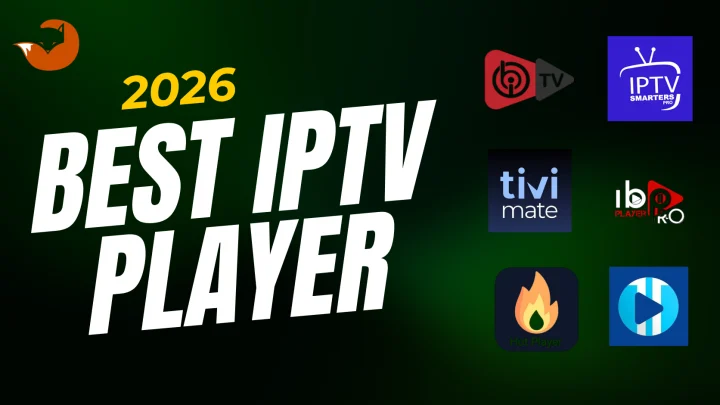
- TiviMate is not available on Tizen. TiviMate is an Android-only application. Despite being widely recommended in general IPTV guides, it does not run on any Samsung Smart TV natively. If you see a guide recommending TiviMate for a Samsung TV without qualification, that guide is inaccurate.
- Player apps commonly available in the Samsung App Store include Smart IPTV (SIPTV), SS IPTV, and IBO Player. IPTV Smarters availability varies by region and TV model year.
- App availability varies by country, model year, and firmware version. An app available in the US Samsung App Store may not appear on a specific older model or in a different region.
- Some 2022 and newer Samsung models running Tizen OS 6.5 allow APK sideloading via USB, which opens access to additional apps. This method is subject to firmware changes and Samsung may restrict it in future updates — it should not be treated as a guaranteed permanent option.
- Samsung recommends downloading apps through the official Samsung App Store. Third-party or sideloaded apps are not subject to Samsung's quality review.
- Generally, Samsung models from 2016 onwards (Tizen OS 2.4+) have the best IPTV app support, with 2019+ models offering better performance for larger playlists.
Before subscribing: Search your Samsung App Store for the specific IPTV player app your provider recommends. If it does not appear, ask your provider which alternative is supported on Tizen before paying.
LG Smart TV (webOS)
LG Smart TVs run webOS, LG's proprietary operating system with its own content store called the LG Content Store.
Key facts for IPTV users:
- TiviMate does not run on webOS. LG's webOS is not Android — it cannot install Android APK files. If you want to use TiviMate on an LG display, the practical approach is connecting a Firestick or Android TV box to the TV's HDMI port, not installing anything natively on the LG OS.
- Player apps commonly available in the LG Content Store include Smart IPTV, SS IPTV, Set IPTV, and in some regions IPTV Smarters. Availability varies by region and webOS version.
- webOS does not support Android-style APK sideloading. Apps must be installed from the LG Content Store.
- LG models from 2016 onwards (webOS 3.0+) generally support current IPTV apps. webOS 4.0+ (2018+) models offer more reliable performance for modern player apps.
- Older LG NetCast TVs (pre-2016) are not compatible with current IPTV player apps and are better served by an external streaming device.
Before subscribing: Search the LG Content Store on your specific TV for the player app your provider supports. Region and model year both affect availability.
Android TV and Google TV
Android TV and Google TV represent the most flexible Smart TV platform for IPTV. Both run on Android, giving access to the Google Play Store where the full range of major IPTV player apps are available.
Key facts for IPTV users:
- TiviMate, IPTV Smarters Pro, GSE Smart IPTV, and most other popular player apps install directly from the Google Play Store without any settings changes.
- Sideloading APK files is also supported for apps not in the Play Store.
- Android TV is used by many TV brands (Sony, TCL, Hisense, Philips on some models) and external devices like the NVIDIA Shield TV. Google TV (a newer Android-based interface) is used on Chromecast with Google TV, certain TCL and Hisense models, and others.
- The app selection on Android TV / Google TV is significantly broader than on Samsung Tizen or LG webOS.
Before subscribing: Confirm your TV uses Android TV or Google TV by going to Settings > About. If it mentions Android, Google Play Store, or Google TV, this is the platform you're on.
How to Compare the Best IPTV for Smart TV
Once you know your TV platform, use the following criteria to evaluate any provider. This framework applies regardless of which service you are considering.
Device and App Compatibility
The single most important question before paying: does this provider have documented setup instructions for the exact IPTV player app available on your specific Smart TV platform?
A provider listing "Smart TV" as a supported device without specifying which app works on Samsung Tizen, LG webOS, or Android TV is offering incomplete information. Ask specifically:
- Which player app do you recommend for Samsung / LG / Android TV?
- Is that app available in the Samsung App Store / LG Content Store / Google Play Store?
- Do you have a setup guide for my platform?
Login Method — M3U or Xtream Codes
Most IPTV providers deliver credentials in one of two formats. Understanding these before you subscribe helps you configure the player app correctly.
Xtream Codes (Username + Password + Server URL): Three pieces of information — a server address, a username, and a password. This format allows player apps to separate live TV, VOD, and catch-up content cleanly and typically results in faster channel loading. It is the more feature-rich format.
M3U playlist URL: A single long web address containing your entire channel list. Simpler but slightly less flexible for sorting content categories. Most player apps support both formats.
Your provider will tell you which format they use. Confirm this matches what your chosen player app supports.
For official speed guidance, see the FCC Broadband Speed Guide.
Internet and Home Network Requirements
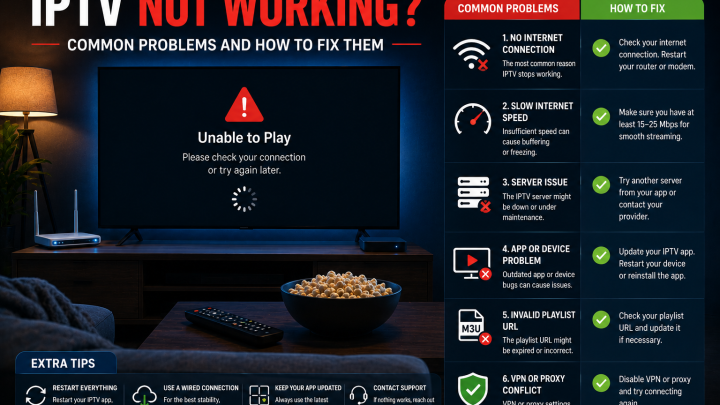
Streaming quality depends on your connection, not just the provider's server. Consider the following before subscribing and when troubleshooting:
- HD streaming generally requires around 5–10 Mbps of stable download speed per stream, based on the FCC's Broadband Speed Guide for video streaming
- 4K streaming, where available from your provider, requires substantially more — typically 25 Mbps or higher per stream
- A wired Ethernet connection to your Smart TV provides more consistent performance than Wi-Fi, particularly for live sports where brief signal drops are immediately visible
- Peak evening hours (roughly 7–11 PM) can reduce available bandwidth as neighboring households stream simultaneously
- Multiple devices sharing your home network compete for available bandwidth — streaming on other devices simultaneously reduces what's available for your TV
Test your connection speed and stability before blaming a provider for buffering. Many playback issues resolve when switching from Wi-Fi to Ethernet.
Plan Length and Stream Limits
Most IPTV providers offer multiple plan durations. The content access is typically identical — only the commitment period and effective monthly cost differ.
What to confirm before subscribing:
- Is the plan a one-time prepaid payment for the stated duration, or a recurring subscription that charges automatically?
- How many simultaneous streams does the plan include? Some plans allow only one active stream at a time — if two people in your household want to watch on different devices simultaneously, a single-stream plan will not support that.
- Is a multi-stream plan available, and at what cost?
These details should be clearly stated before payment. If a provider cannot answer them, treat that as a red flag.
Support and Payment Transparency
Support: Test a provider's support before subscribing. Send a question via their contact channel and measure responsiveness and specificity. A provider who answers clearly before you pay is more likely to help you effectively after a problem occurs. Look for documented setup guides for your specific platform.
Payment: Providers accepting credit card, PayPal, or similar standard payment processors create a traceable transaction with dispute options. Providers requiring only cryptocurrency, gift cards, or wire transfers remove your ability to dispute a charge if the service fails to deliver. This distinction is meaningful.
Trial and Refund Terms
If a provider offers a trial period, use it during peak evening hours on your actual Smart TV — not a phone or laptop. The trial should test the content, EPG, and playback quality you will actually use after subscribing.
Read the refund policy before paying. Policies vary significantly between providers. Some offer a specific window with clear conditions; others offer no refunds. Understand the terms before, not after, you commit payment.
Red Flags to Avoid Before Paying
These patterns are consistently associated with unreliable or misleading providers:
- Claims of "zero buffering" or "guaranteed 99.9% uptime" — no internet-delivered service can honestly make these promises
- Wildly inflated channel counts (50,000+, 100,000+) with no specifics about what those channels actually are
- No identifiable contact information or company details before payment
- Payment only via cryptocurrency, gift cards, or wire transfer
- "Lifetime access" offers at a single low price
- No written refund policy, or a policy only accessible after payment
- No setup guide for your specific Smart TV platform
- Provider cannot name the specific player app that works on your TV
- Only perfect reviews with no critical feedback anywhere online
When an External Streaming Device May Be a Better Option
A Firestick, Android TV box, or similar external device connected to your Smart TV's HDMI port may be a more practical choice than native Smart TV IPTV apps in several situations:
- Your Samsung or LG TV does not support the player app your preferred provider uses
- Your Smart TV is older and runs an outdated OS version with limited app compatibility
- You prefer TiviMate, which is only available on Android-based devices
- Your Smart TV's processing power causes slow channel loading or poor EPG performance with large playlists
- The specific IPTV apps available in your TV's native app store do not meet your requirements
Using an external device does not replace your Smart TV — it simply runs through the TV's HDMI port and delivers the IPTV app experience through the TV's display. For Firestick setup guidance, see the How to Install IPTV on Firestick guide.
Before You Choose: A Smart TV IPTV Checklist
Before subscribing to any IPTV service for your Smart TV:
- I have confirmed my Smart TV's operating system (Tizen / webOS / Android TV / Google TV)
- I have searched my TV's app store for the player app my provider recommends and confirmed it is available
- I understand that TiviMate is not available on Samsung or LG native OS — and have chosen a compatible alternative if relevant
- I know whether my provider uses Xtream Codes or M3U and have confirmed my player app supports that format
- I have tested my internet speed and understand how many Mbps are available for streaming
- I have confirmed how many simultaneous streams my chosen plan includes
- I know whether the plan is one-time prepaid or recurring
- I have read and understood the refund policy before paying
- I have confirmed the payment method is standard and creates a traceable transaction
- I have contacted support before subscribing and received a specific, helpful response
- I know what happens after I pay — what credentials I receive and when
How FoxTele Works for Smart TV Users
FoxTele is a US-market IPTV service with prepaid, non-recurring plans.
Plans:
| Plan | Price |
|---|---|
| 3 Months | US$30 |
| 6 Months | US$45 |
| 12 Months | US$70 |
Listed compatible devices include: Samsung Smart TV, LG Smart TV, Android TV and Android Box, Amazon Firestick, MAG Device, mobile and tablet, Windows PC, and Mac. Device compatibility for your specific TV model and operating system version should be confirmed with FoxTele before subscribing.
Order process: Select a plan on the FoxTele website, submit your order request, receive a payment link by email or WhatsApp after order review, complete payment, then receive your setup and activation information — including the credentials you need for your player app. There is no automatic checkout.
Contact FoxTele:
- Email: support@foxtele.us
- WhatsApp: +1 450-485-2195
Trial availability, refund terms, stream limits, and exact supported device details should be confirmed directly with FoxTele at the time of your inquiry, as these are subject to current policy.
If you are ready to compare plan durations, explore FoxTele plans and contact support if you need help confirming compatibility with your Smart TV before submitting an order request.
Looking for IPTV for Your Smart TV?
Before choosing a plan, confirm your Smart TV model, the player app available in your TV’s app store, and whether your provider supports your platform. You can review FoxTele plans or contact support if you need help checking compatibility before submitting an order request.
Frequently Asked Questions
What is the best IPTV for Smart TV?
There is no single best option for every Smart TV owner because device compatibility depends on your TV's operating system. The right IPTV service is one that has a working player app in your TV's native app store (or a supported alternative), delivers streams reliably on your internet connection, has clear payment terms, and supports your specific device with setup documentation. Use the evaluation criteria in this guide to assess any provider against these factors before paying.
Can I use IPTV directly on a Smart TV?
Yes, on most modern Smart TVs — but the available player apps differ by platform. Samsung Tizen and LG webOS have their own curated app stores with a more limited selection than Android TV or Google TV. Confirm which player apps are available in your TV's specific app store before subscribing to any service.
Does IPTV work on Samsung Smart TV?
Yes, on Samsung TVs running Tizen OS (generally 2016 models and newer). Available player apps in the Samsung App Store include Smart IPTV, SS IPTV, and IBO Player in most regions. TiviMate is not available on Tizen — it is an Android-only application. IPTV Smarters availability varies by region and model year. App availability should be confirmed in your specific Samsung App Store before subscribing.
Does IPTV work on LG Smart TV?
Yes, on LG TVs running webOS (generally 2016 models and newer running webOS 3.0+). The LG Content Store includes apps such as Smart IPTV, SS IPTV, and Set IPTV. LG webOS does not support Android APK sideloading — apps must come from the LG Content Store. TiviMate is not available on webOS natively. Older LG NetCast TVs (pre-2016) are not compatible with current IPTV apps.
Is Android TV better for IPTV than Samsung or LG?
Android TV and Google TV offer significantly more player app flexibility than Samsung Tizen or LG webOS. TiviMate, IPTV Smarters Pro, and most other popular player apps install directly from the Google Play Store. If player app choice is a priority, an Android TV or Google TV device — including external devices like the Chromecast with Google TV or NVIDIA Shield — offers the broadest options.
Do I need a Firestick if I already have a Smart TV?
Not necessarily. If your Smart TV's app store includes a player app that works with your provider's credentials, a Firestick is optional. However, if your preferred player app is not available on your TV's platform (for example, TiviMate on a Samsung or LG TV), connecting a Firestick or Android TV box to the HDMI port is a practical alternative.
This guide helps you evaluate the best IPTV for Smart TV based on platform compatibility, player apps, network performance, plan terms, and support.
Smart TV app availability, operating system features, and IPTV player app support are subject to change. Availability varies by TV model, model year, firmware version, and geographic region. Verify current compatibility with your TV manufacturer's app store and with your IPTV provider before subscribing. Nothing in this guide constitutes legal advice. Use all apps and services in accordance with their terms of service.